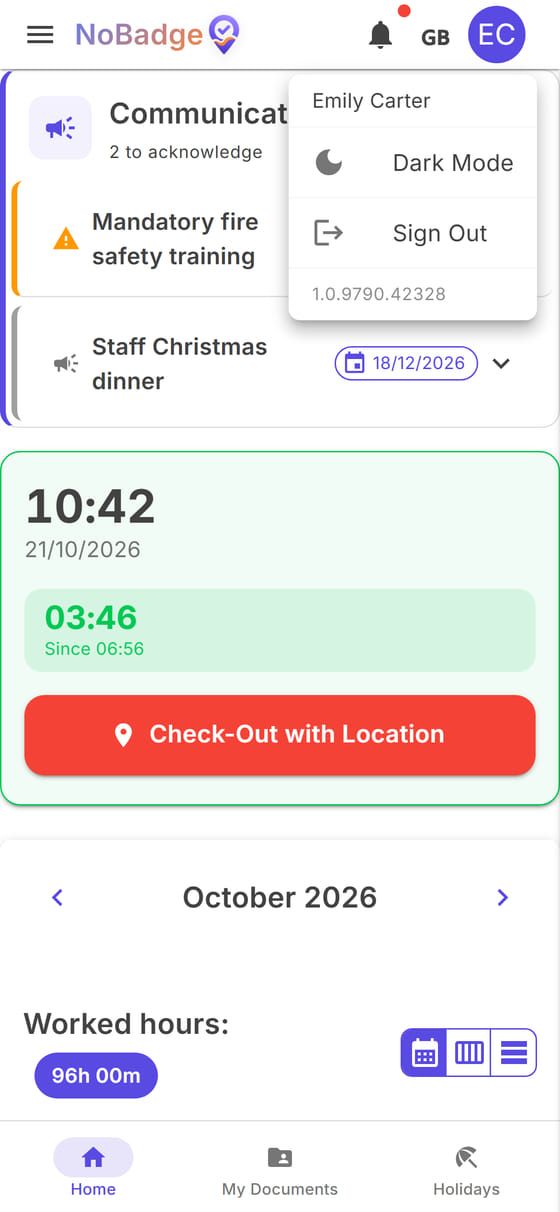
With NoBadge you clock in and out from your phone, check your hours, request holidays and time off, report a missed clock-in and find your documents, such as your payslips. This guide follows your working day: first your first login, then clocking in, then everything else.
In the examples the company is Liffey View Hotel Ltd, the workplace is Liffey View Hotel Dublin and the employee is Emily Carter, receptionist. In your app you will see your own company's names, and some items (for example Expense reports or Missed Clock Requests) only appear if your company has switched them on.
1. At a glance
| What you want to do | Where |
|---|---|
| Clock in and out | Home, the big button |
| See your hours for the month | Home, the calendar below the button |
| Read company announcements | Home at the top, or Communications in the menu |
| Request holidays or time off | Holidays |
| Report a missed clock-in | Missed Clock Requests in the menu |
| Download payslips and documents | My Documents |
| Claim back an expense | Expense reports in the menu |
| See your notifications | the bell at the top |
2. Your first login
Step 1. The invitation. You receive an email from NoBadge with your company's name (sometimes the invitation comes by WhatsApp, with the same link). Tap Accept Invitation & Get Started (1). If you can't find the email, check your spam folder; if the link has expired, ask your manager to send you a new one.
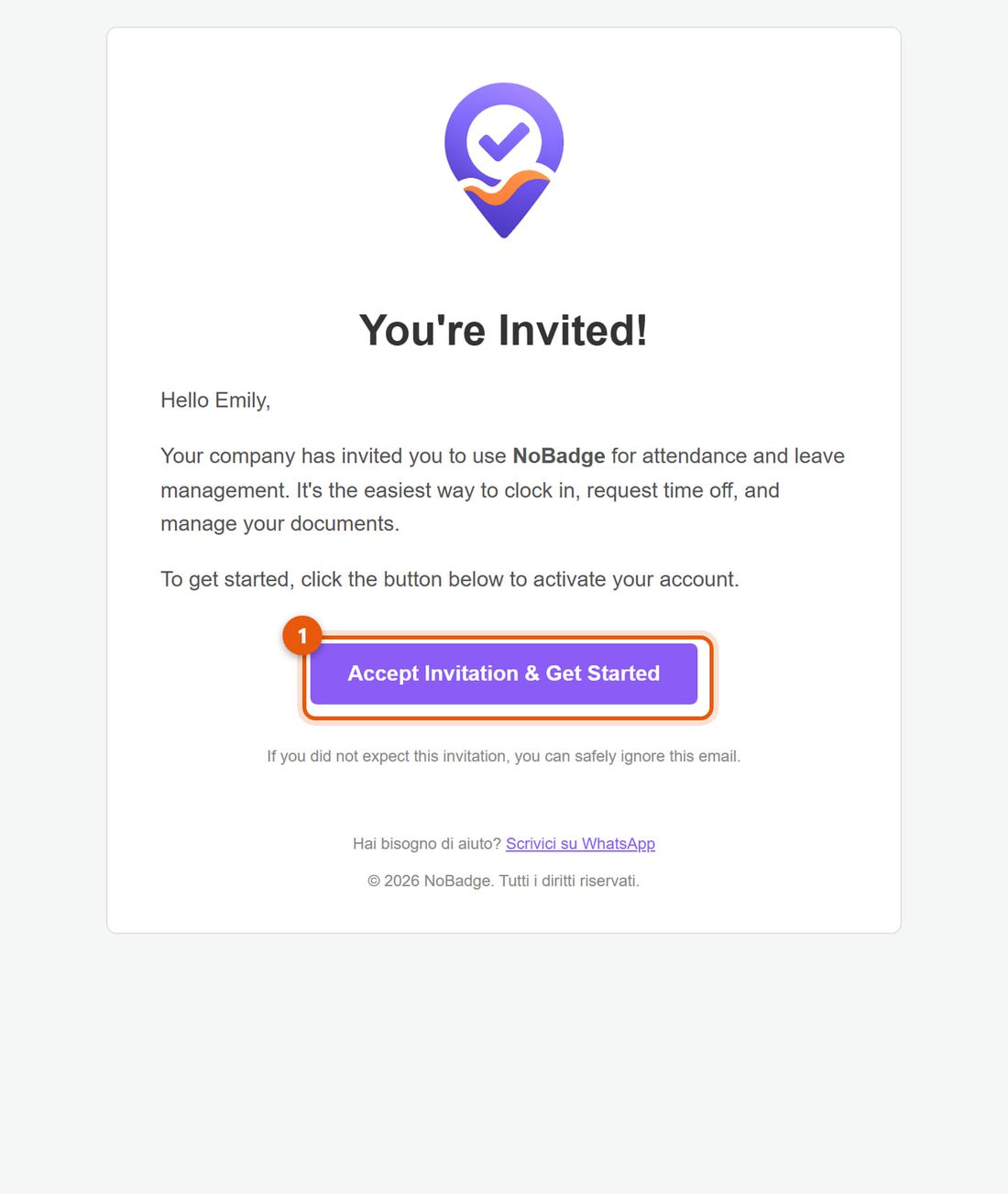
Invitation email with the Accept Invitation & Get Started button Step 2. The welcome page. NoBadge recognises you from the link and greets you by name. Tap Set Password (1) to choose your password: you will need it to log back in if you sign out or change phone. On Android you can also start straight away with Go to Homepage (2) and choose a password later; on iPhone you must choose it now, because the installed app asks for it.
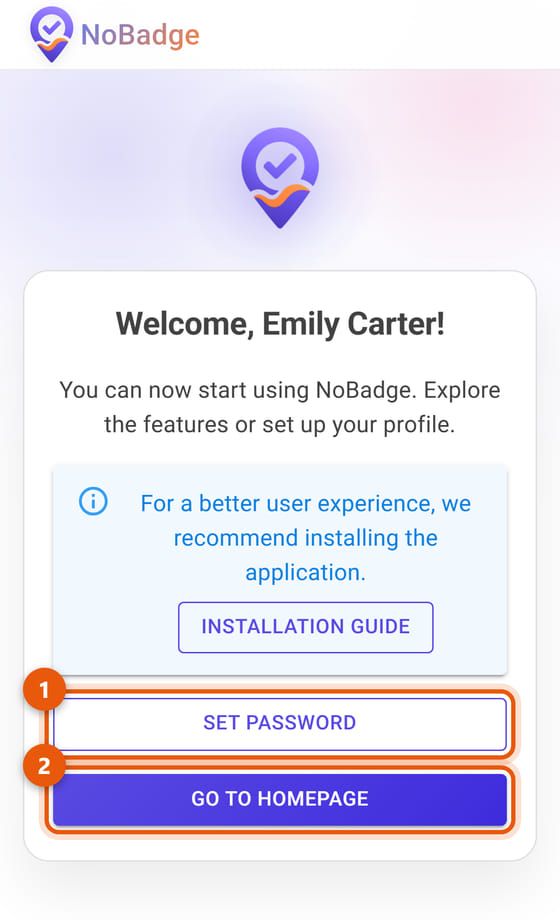
Welcome page with Set Password and Go to Homepage Step 3. Your password. Type it twice and tap Set Password (1). It needs at least 8 characters, including a capital letter, a number and a symbol (for example
Liffey!2026). Right after that you are on your Home page.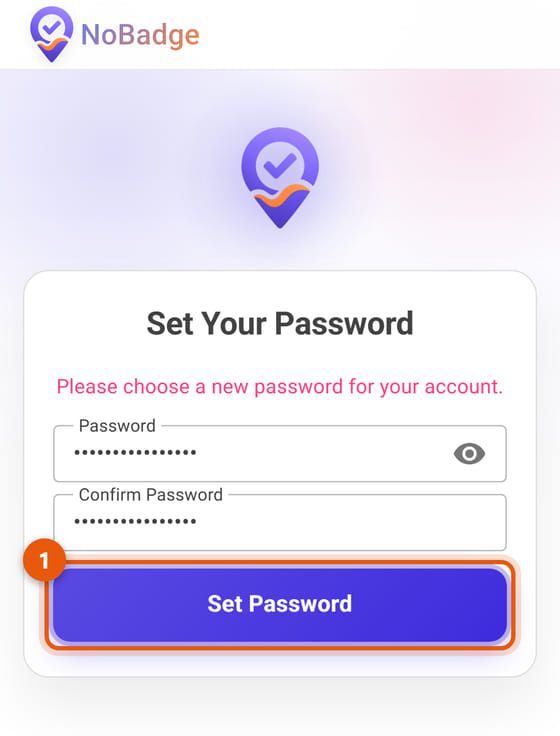
Set Your Password page
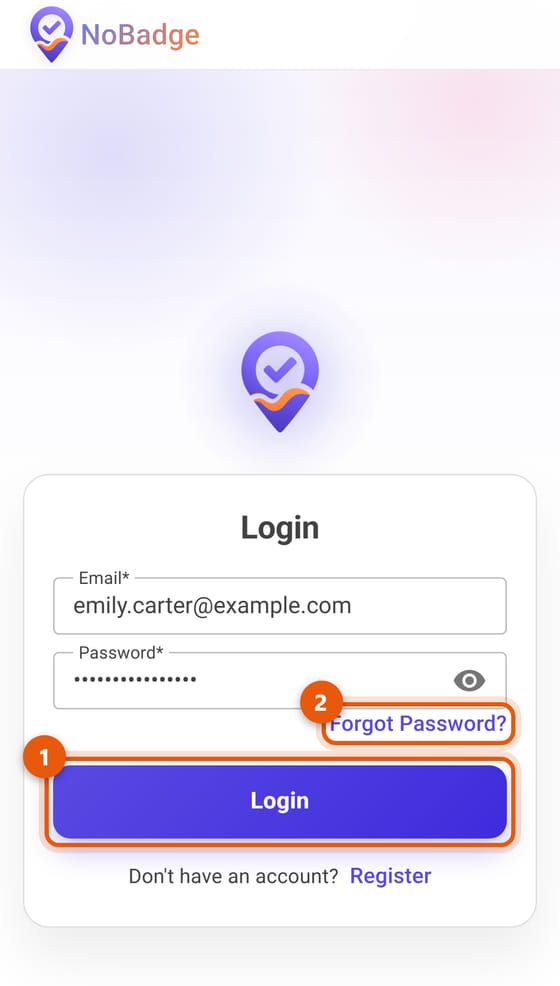
Next time NoBadge keeps you signed in: open the app and you are already on Home. If it asks you to log in, enter your email and password and tap Login (1). If you have forgotten your password, use Forgot Password? (2): you will receive an email to choose a new one.
Install the app on your phone
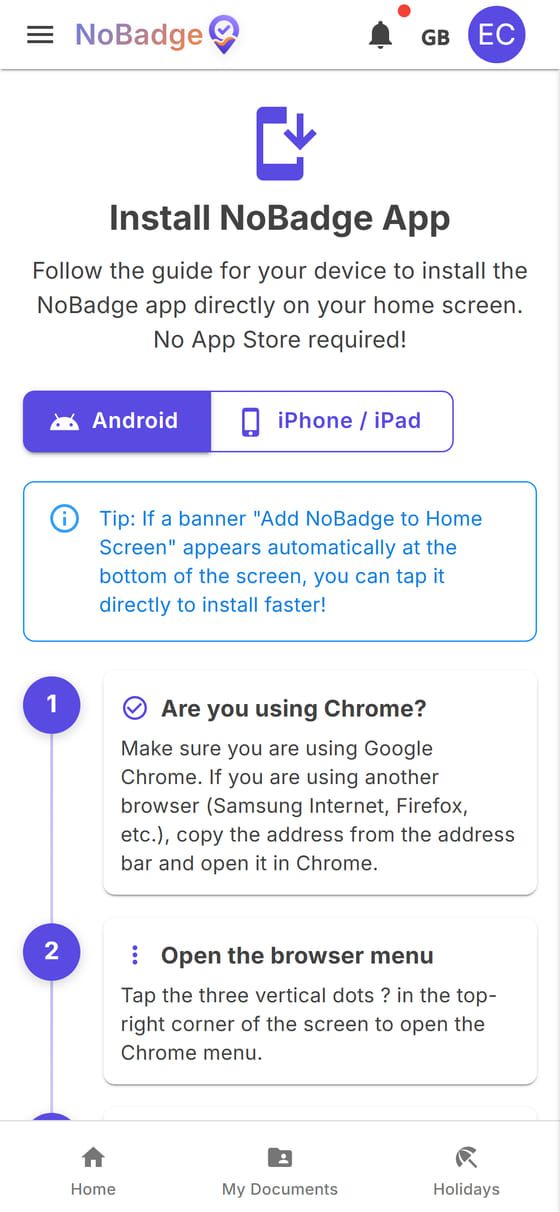
NoBadge is not downloaded from an app store: you install it from the browser and then open it from an icon, like any other app. From the menu open Install App, choose Android or iPhone / iPad and follow the steps. On iPhone you do it from Safari, with Share › Add to Home Screen.
3. Clocking in and out
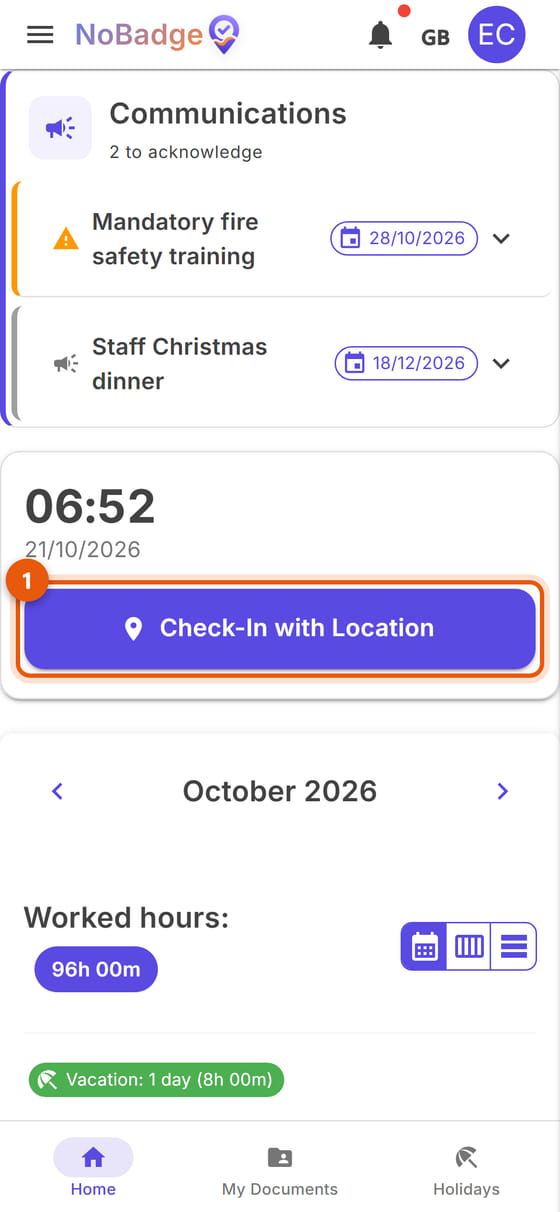
When you arrive at work, open NoBadge. At the top you see the time and date; below it, the Check-In with Location button (1). Tap it: your phone checks that you are inside the workplace area and records your arrival. If your phone asks for permission to use your location, answer Allow.
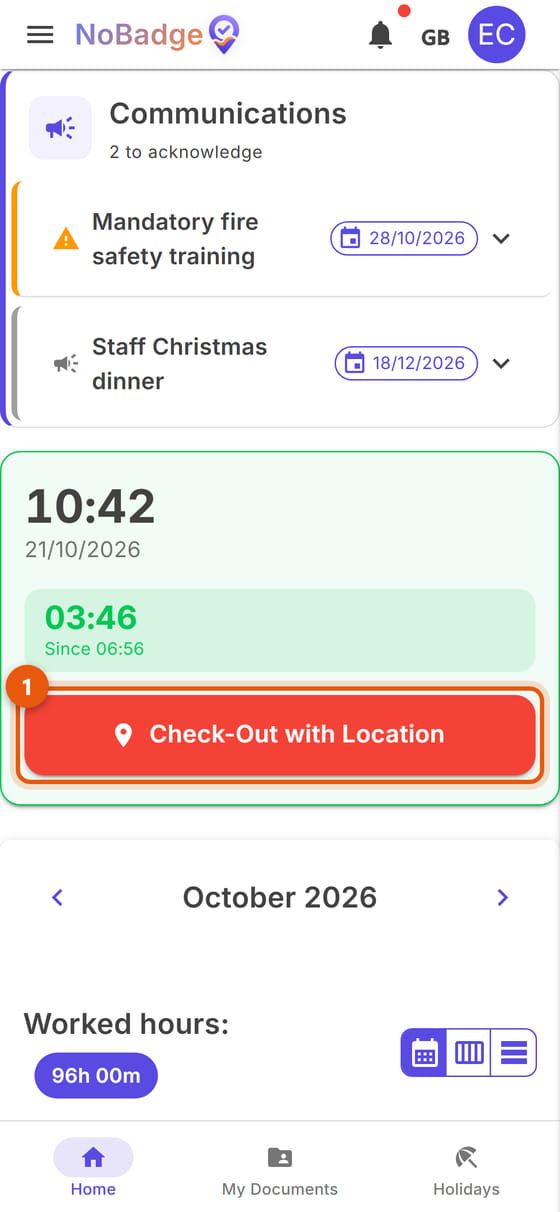
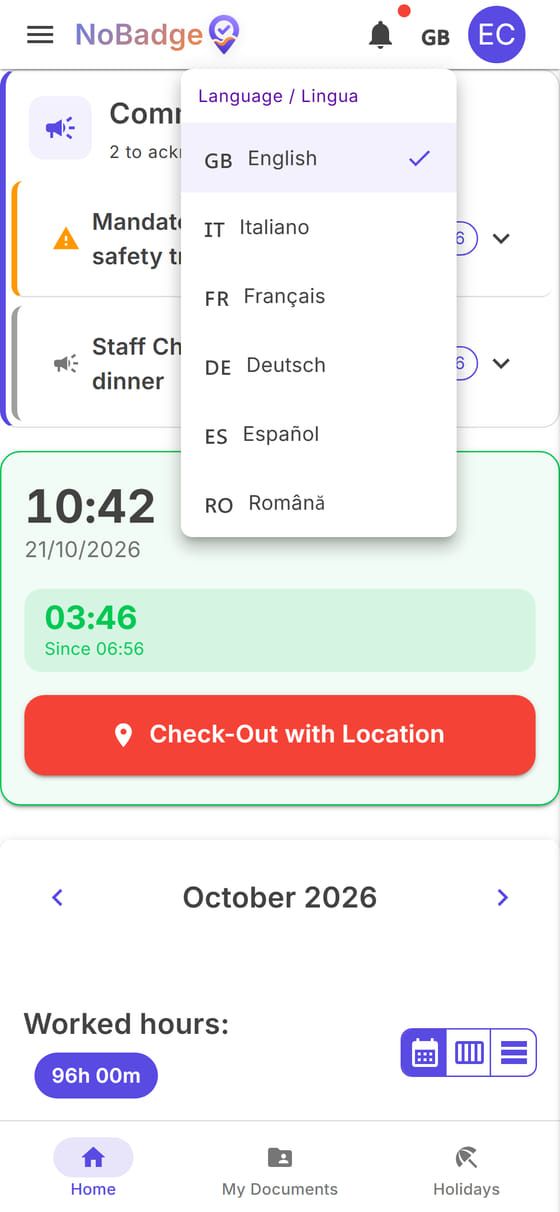
From then on the box turns green: you see how long you have been at work (03:46) and since what time (06:56). At the end of your shift tap Check-Out with Location (1). A window may appear where you can add a note about the day: write one, or skip it.
A site selector appears above the button: choose the one you are at before clocking in.
If your clock-in is refused
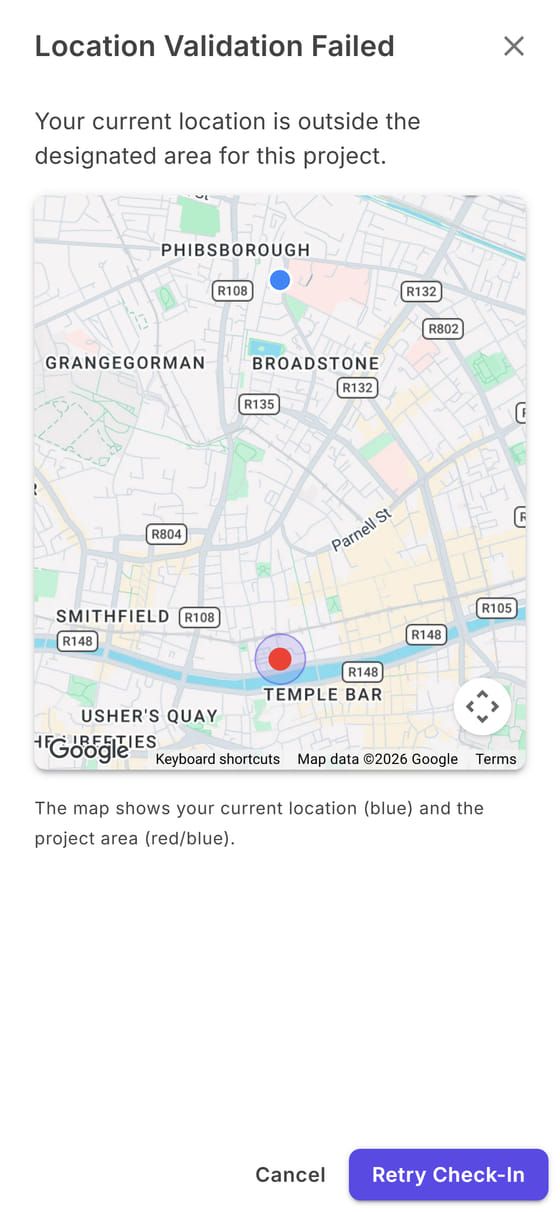
If your phone appears to be outside the workplace area, you see Location Validation Failed with a map: the blue dot is you, the circle is the workplace area. Move closer to the entrance or step outside, turn on your phone's precise location and tap Retry Check-In. If it keeps happening while you are at work, tell your manager: they can check the workplace address or make the area bigger.
Without a connection
If your phone has no signal, the clock-in is saved on the phone with the right time and sent automatically as soon as the connection is back (or with Sync now, in the bar that appears at the top). You need to have opened the app at least once with a connection.
4. Your hours
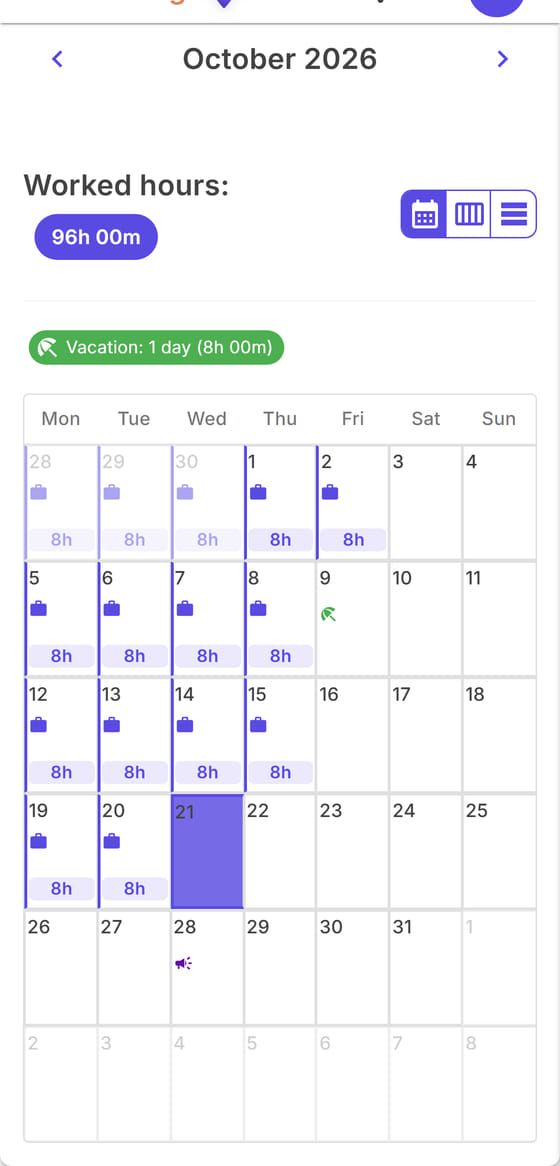
Below the button is the calendar for the month: for each day the recognised hours, with icons for holidays and for days with an event. At the top is the total for the month (Worked hours) and, below it, a summary of your holidays and time off. Use the arrows to change month; the icons on the right switch to the weekly or list view. In the example, 9 October is a day of holiday and the 16th is empty: that is the missed clock-in described in section 7.
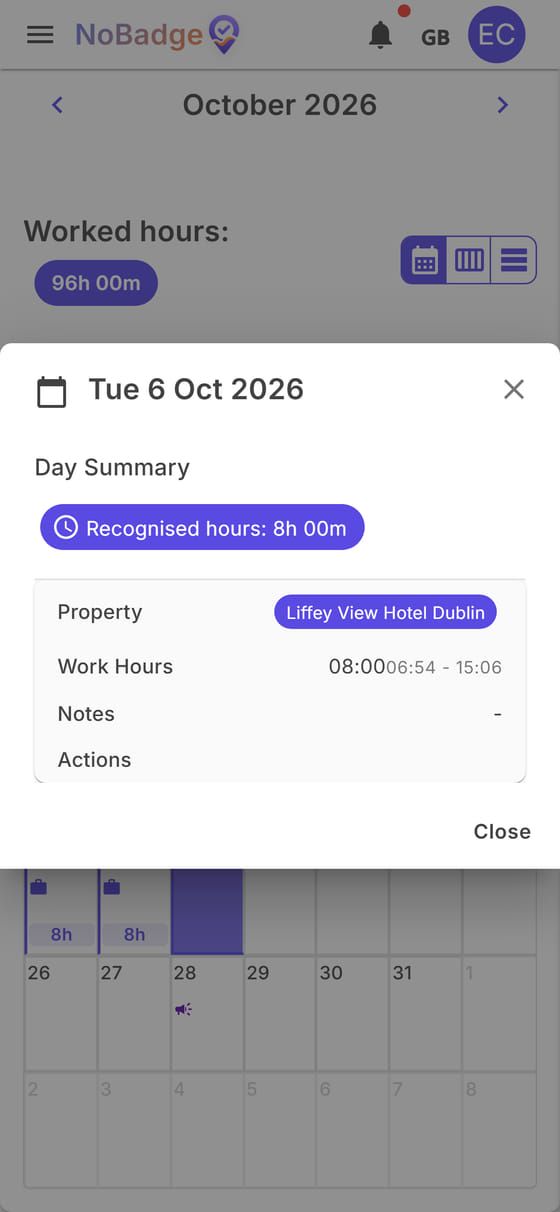
Tap a day to see its details: the workplace, the Recognised hours, the working hours, the actual clock-in and clock-out times, and any notes. The recognised hours can differ by a few minutes from the actual times, because your company applies its own rounding rules. The details are read-only: if something looks wrong, talk to your manager or report a missed clock-in.
5. Communications
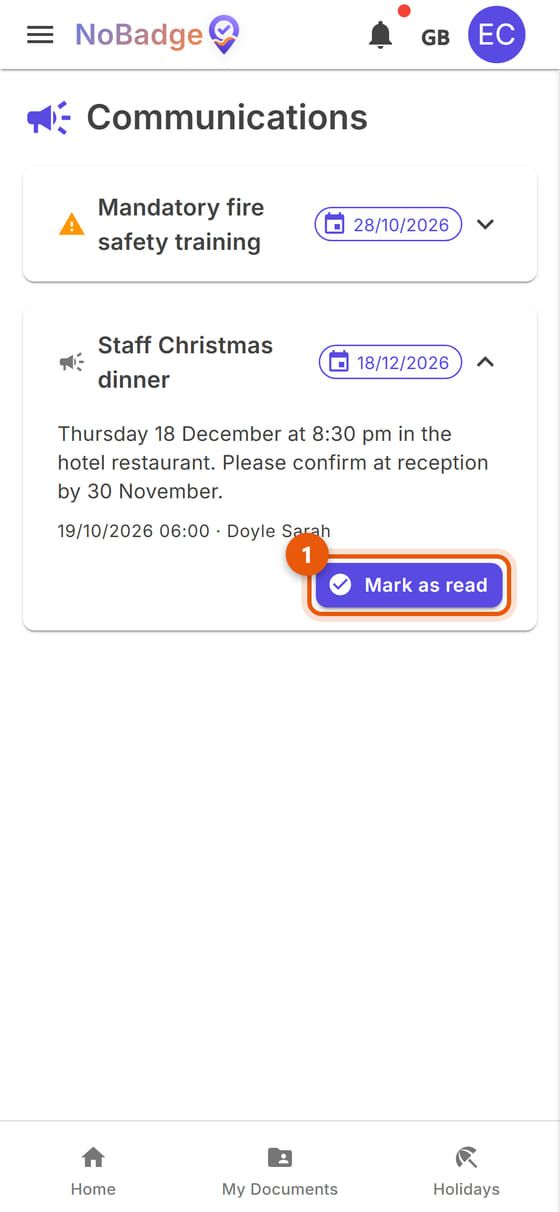
Company announcements (rotas, training, notices) appear at the top of Home and under Communications in the menu. Tap an announcement to open it; when you have read it, tap Mark as read (1): your manager can see who has read it. The orange triangle marks an important announcement, and the date on the right is the day of the event.
6. Holidays and time off
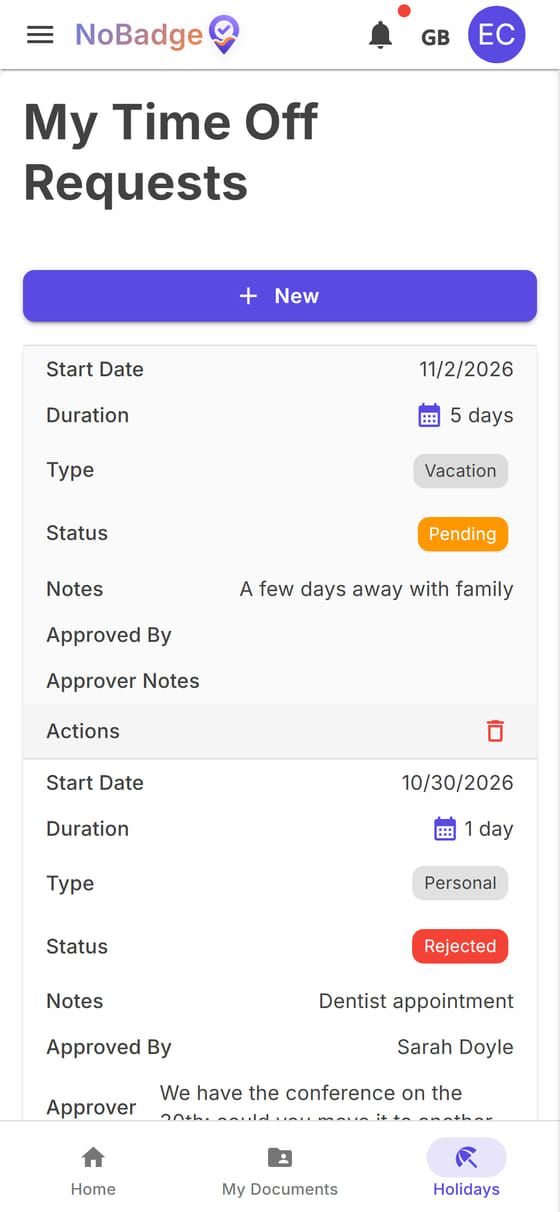
Open Holidays from the bar at the bottom. The My Time Off Requests page lists all your requests with their status:
| Status | What it means |
|---|---|
| Pending | Your manager has not answered yet |
| Approved | Confirmed: the days appear in your calendar |
| Rejected | Not confirmed: you find the reason under Approver Notes |
In the example, the day off on 30 October was rejected with the note "We have the conference on the 30th: could you move it to another day?", while the holiday from 2 to 6 November is still pending. A pending request can be withdrawn from its box.
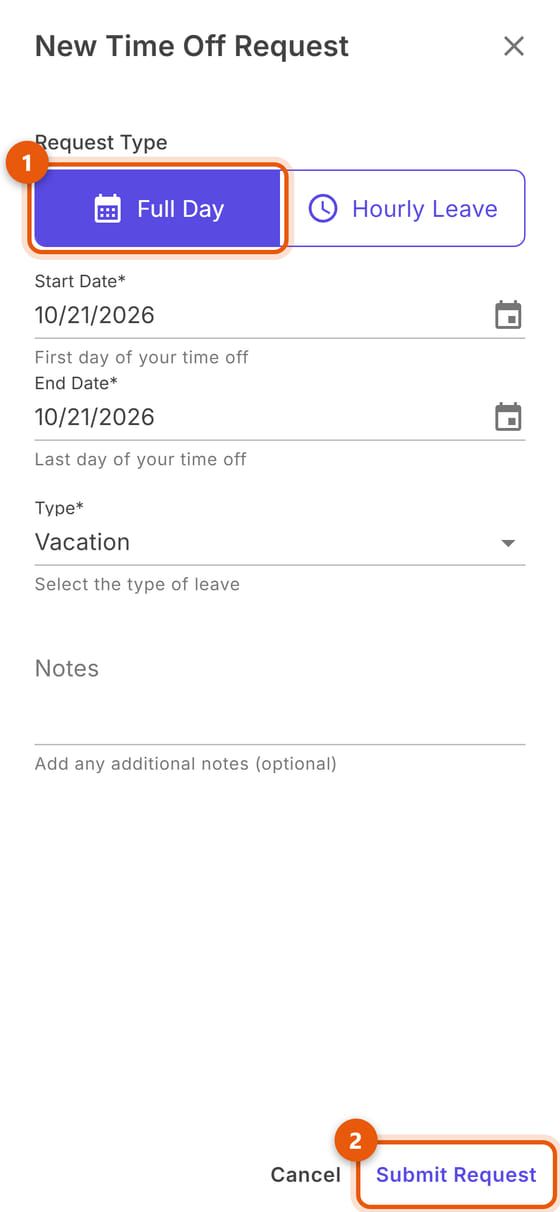
Requesting one or more days. Tap New. Leave Full Day (1) selected, choose the Start Date and End Date, the Type (Vacation, Sick Leave, Personal...), add a note if needed and tap Submit Request (2).
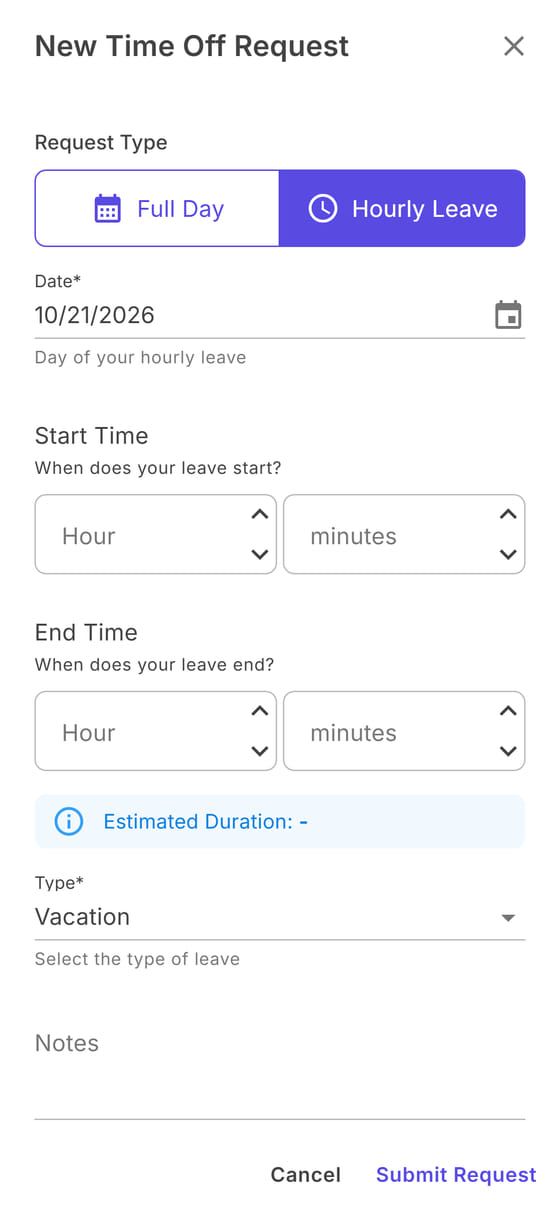
Requesting a few hours. Choose Hourly Leave: enter the date and the start and end times; below you see the estimated duration. Then Submit Request. When your manager answers, you get a notification under the bell.
7. Forgot to clock in?
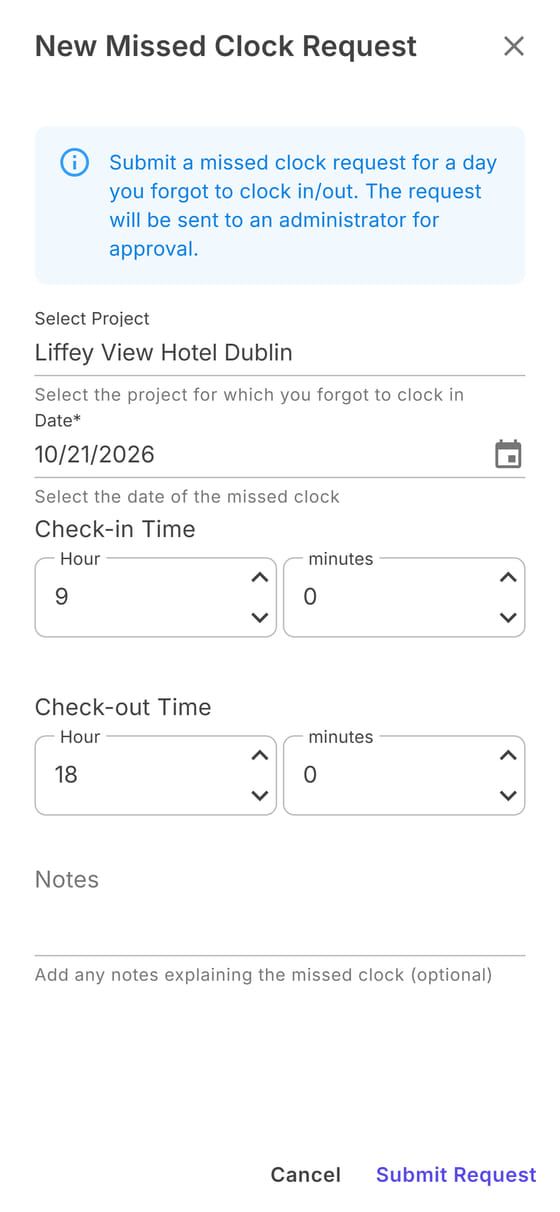
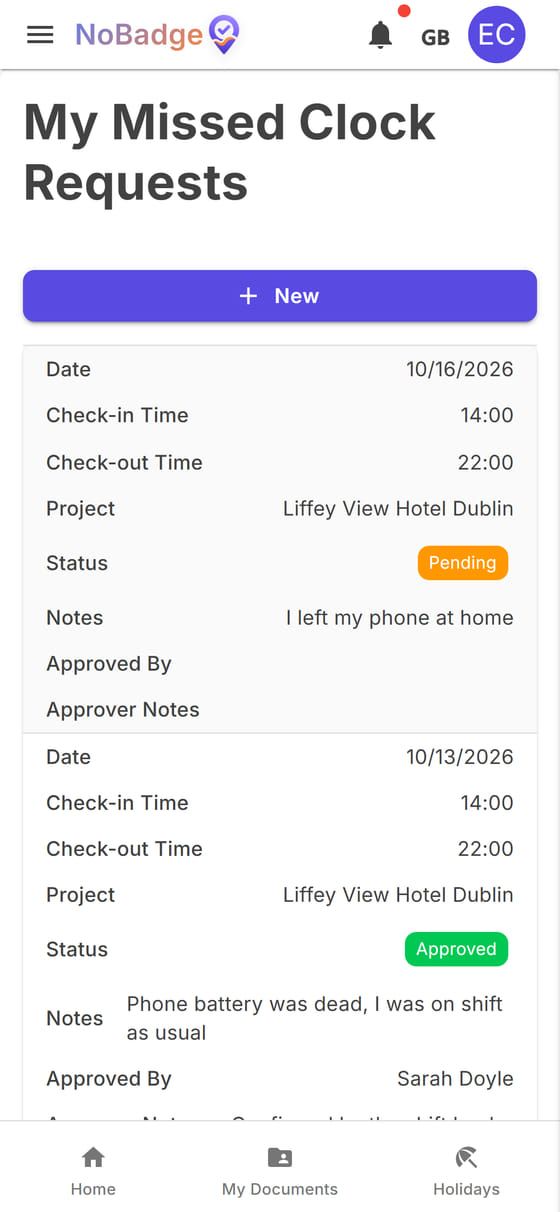
If you did not clock in one day (flat battery, phone left at home...), open Missed Clock Requests from the menu and tap New. Enter the workplace, the day, the clock-in and clock-out times, write a note explaining what happened and tap Submit Request.
The request stays Pending until your manager approves it; once approved, the day appears in your calendar with its hours. In the example the request for 13 October is approved ("Confirmed by the shift leader") and the one for the 16th is pending.
8. Your documents
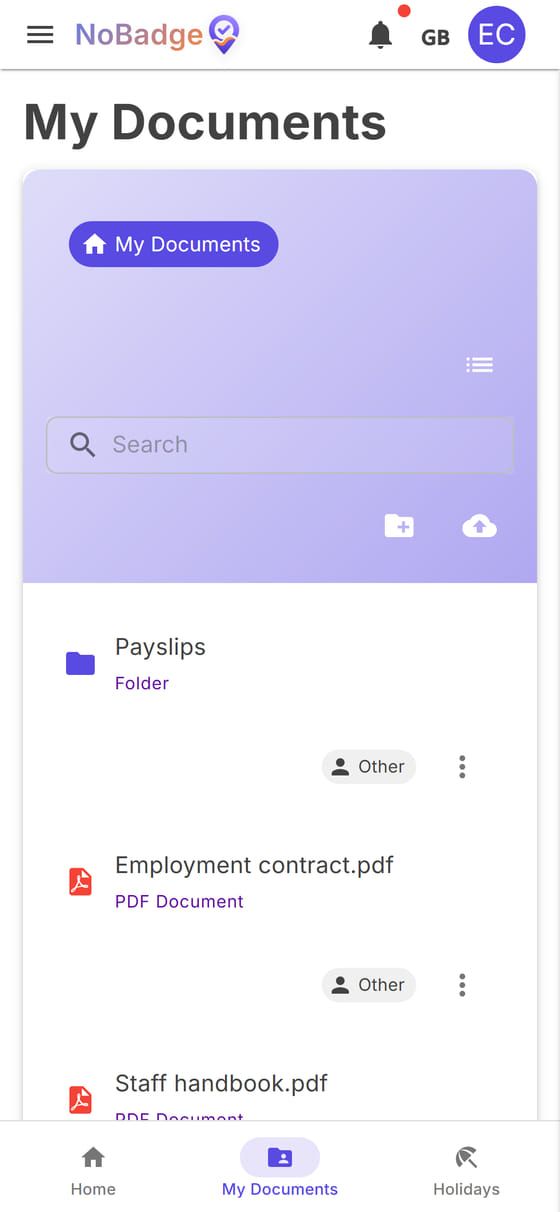
In My Documents (bar at the bottom) you find the files your company shares with you: payslips, contract, staff handbook. Payslips are usually in a folder split by year.
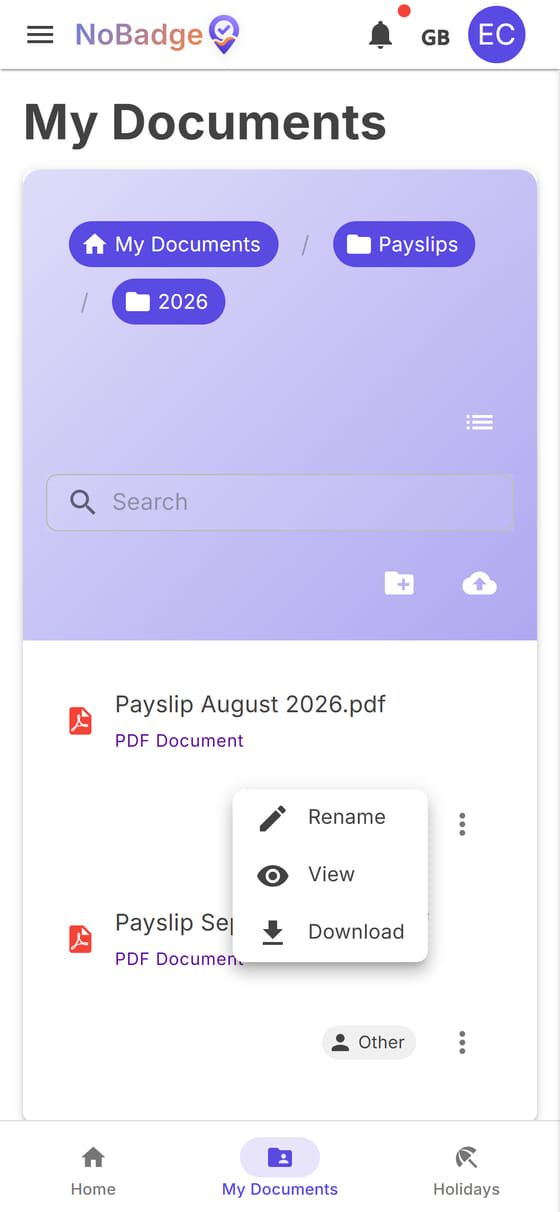
Tap a folder to open it; the names at the top take you back. With the three dots next to a file you can View it on your phone or Download it. You can also upload your own files with the cloud icon and create folders; files added by the company cannot be deleted.
9. Expense reports
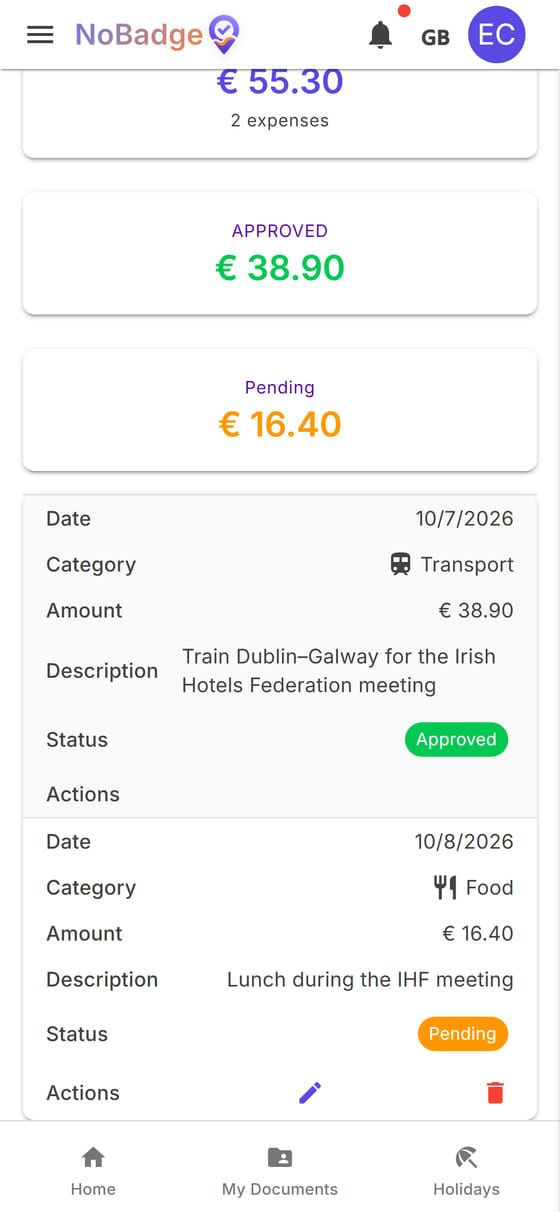
If you paid for something for work (a train ticket, a lunch on a work trip), open Expense reports from the menu. At the top choose the month and year; below you see the total for the month, how much is already approved and how much is pending.
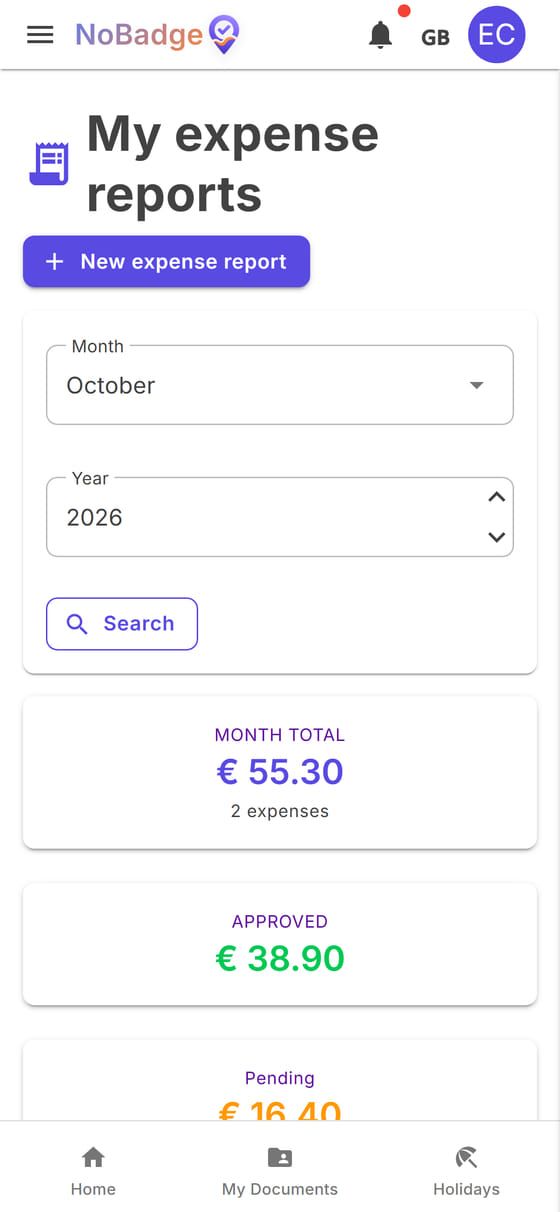
Further down is the list of expenses, each with date, category, amount, description and status. While it is pending you can correct it with the pencil or delete it with the bin.
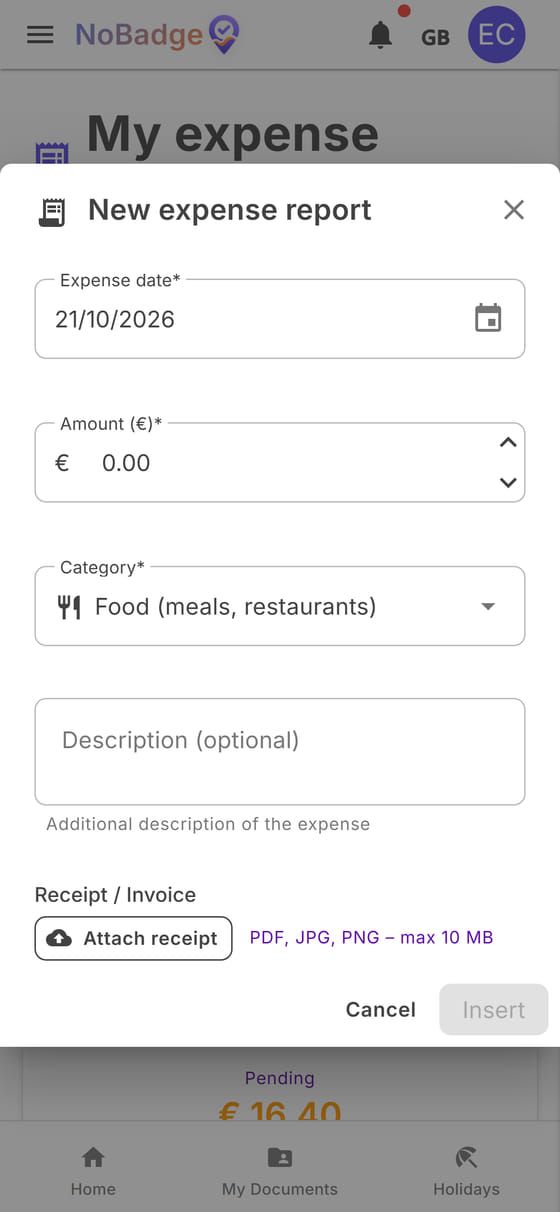
For a new expense tap New expense report: date, amount, category and a description. With Attach receipt you add a photo of the receipt or a PDF (up to 10 MB). Then Insert.
10. Notifications, menu, language
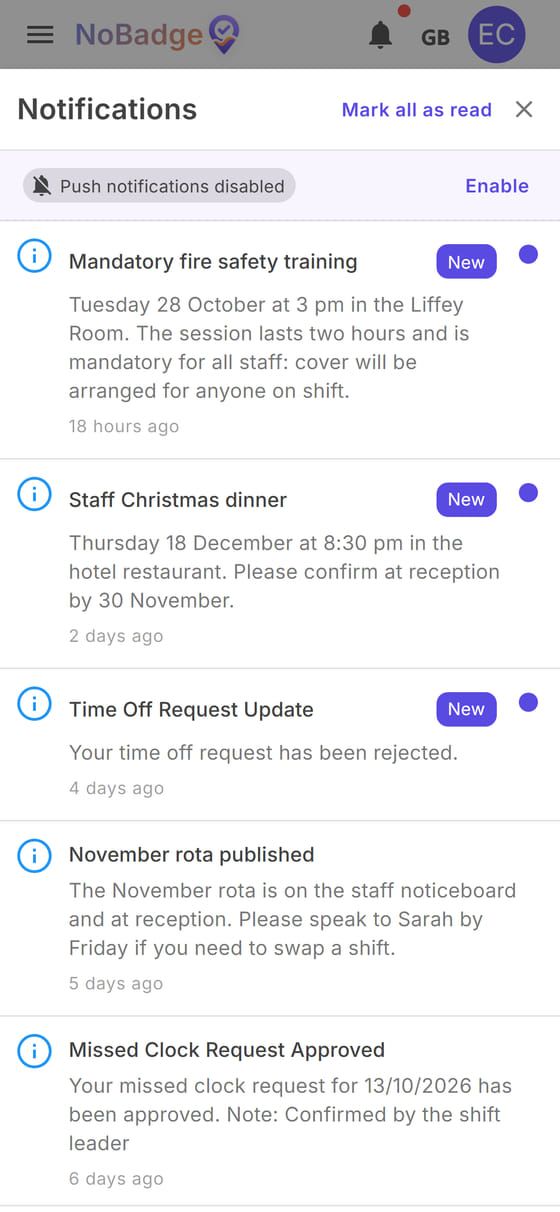
The bell at the top collects your notifications: the answers to your requests and new announcements. The dot marks the unread ones; Mark all as read clears them. With Enable you also receive notifications on your phone when the app is closed.
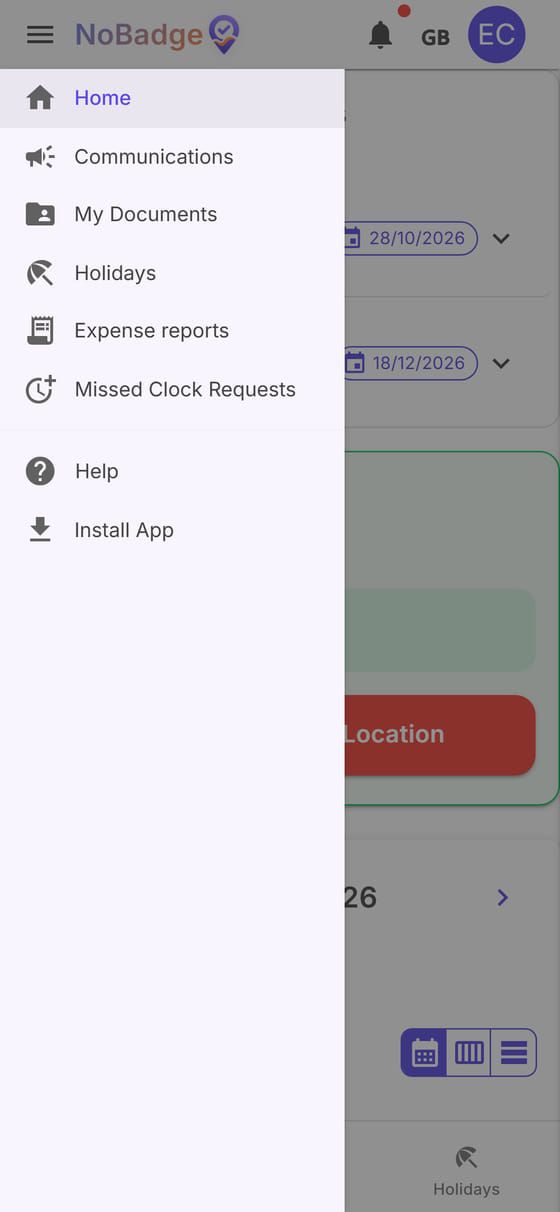
The menu (the three lines at the top left) contains every item: Home, Communications, My Documents, Holidays, Expense reports, Missed Clock Requests, Help and Install App.
The language is changed with the button next to the bell (a flag or the language code): choose between English, Italiano, Français, Deutsch, Español and Română.
Your initials, at the top right, open the menu with your name, Dark Mode (or Light) and Sign Out.