With NoBadge your employees clock in from their phones and you see who is at work, check the hours for the month, correct clock-ins, approve holidays and requests and download the reports for payroll. This guide follows the order in which you need things: signing up and setting up, then the daily work, then the settings.
In the examples the company is Liffey View Hotel Ltd, with two properties (Liffey View Hotel Dublin and Liffey View Apartments) and the administrator Sarah Doyle. In your menu, workplaces are named after the sector you choose at the start: Properties for a hotel, Construction Sites for construction, Venues for restaurants, and so on.
1. Who does what
| Who | What they do in NoBadge | From where |
|---|---|---|
| You, the administrator | Set up the company, add people, check and correct hours, approve requests, download reports | From a computer or a phone |
| Employees | Clock in and out at the workplace, request holidays and time off, report missed clock-ins, receive documents and announcements | From the NoBadge app on their phone |
| Site managers (optional) | Correct the hours of the people working at their site, without being administrators | From a phone or a computer |
You can give your employees the Employee guide, in their own language: it explains the app from their side, step by step.
2. Signing up
Step 1. You. From the website open the sign-up page and enter your email, your password (twice), first name, last name and phone number. The password needs at least 8 characters, including a capital letter, a number and a symbol: the requirements are ticked off as you type. Then Next (1).
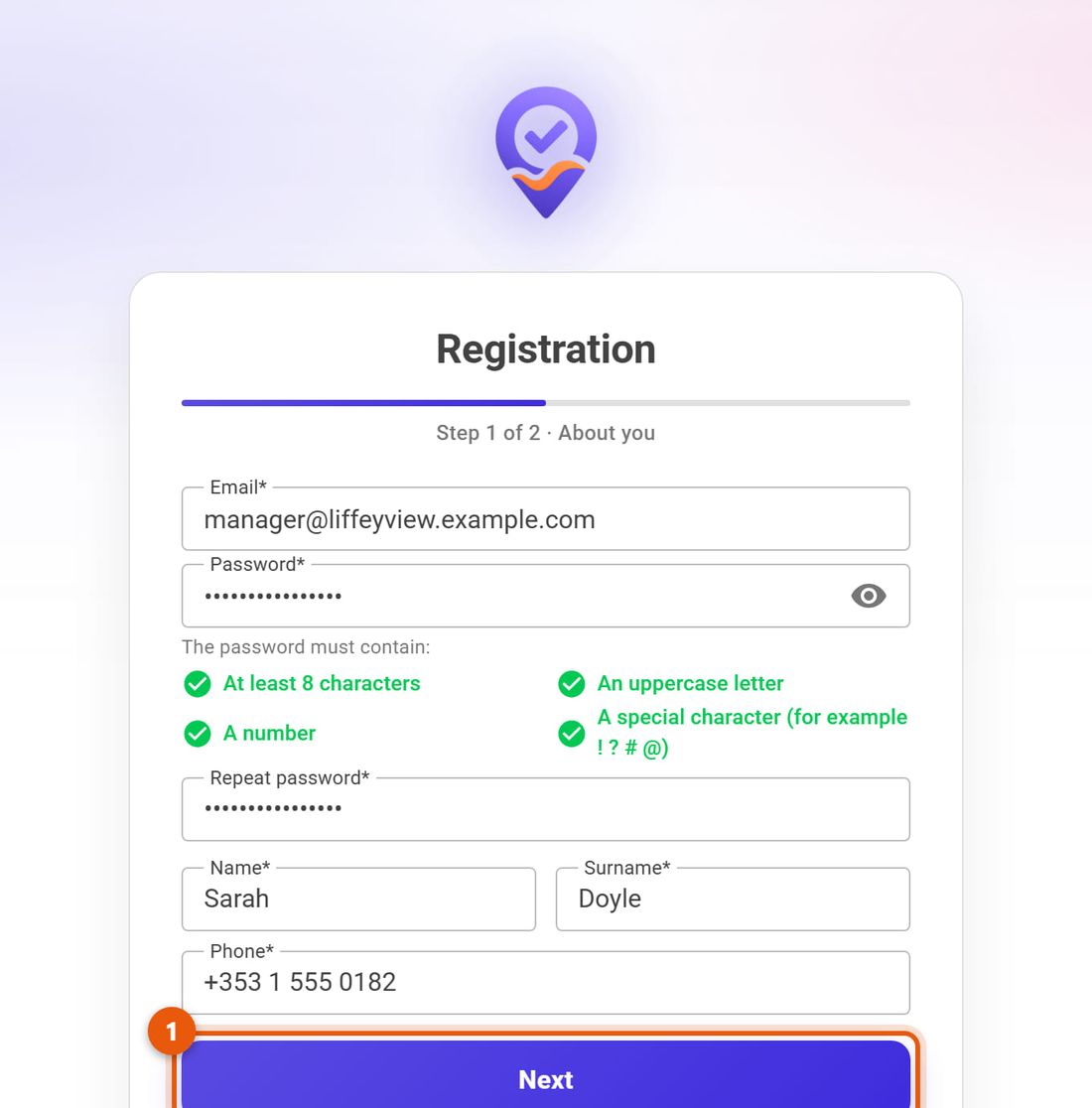
Sign-up, first step: email, password, first name, last name and phone Step 2. Your company. Enter the company name and choose how many employees you have. If a partner gave you a code, enter it with Have a referral code?. Tick the statement about the Privacy Policy and the Terms and Conditions (1) and click Register (2). The second box, about marketing communications, is optional.
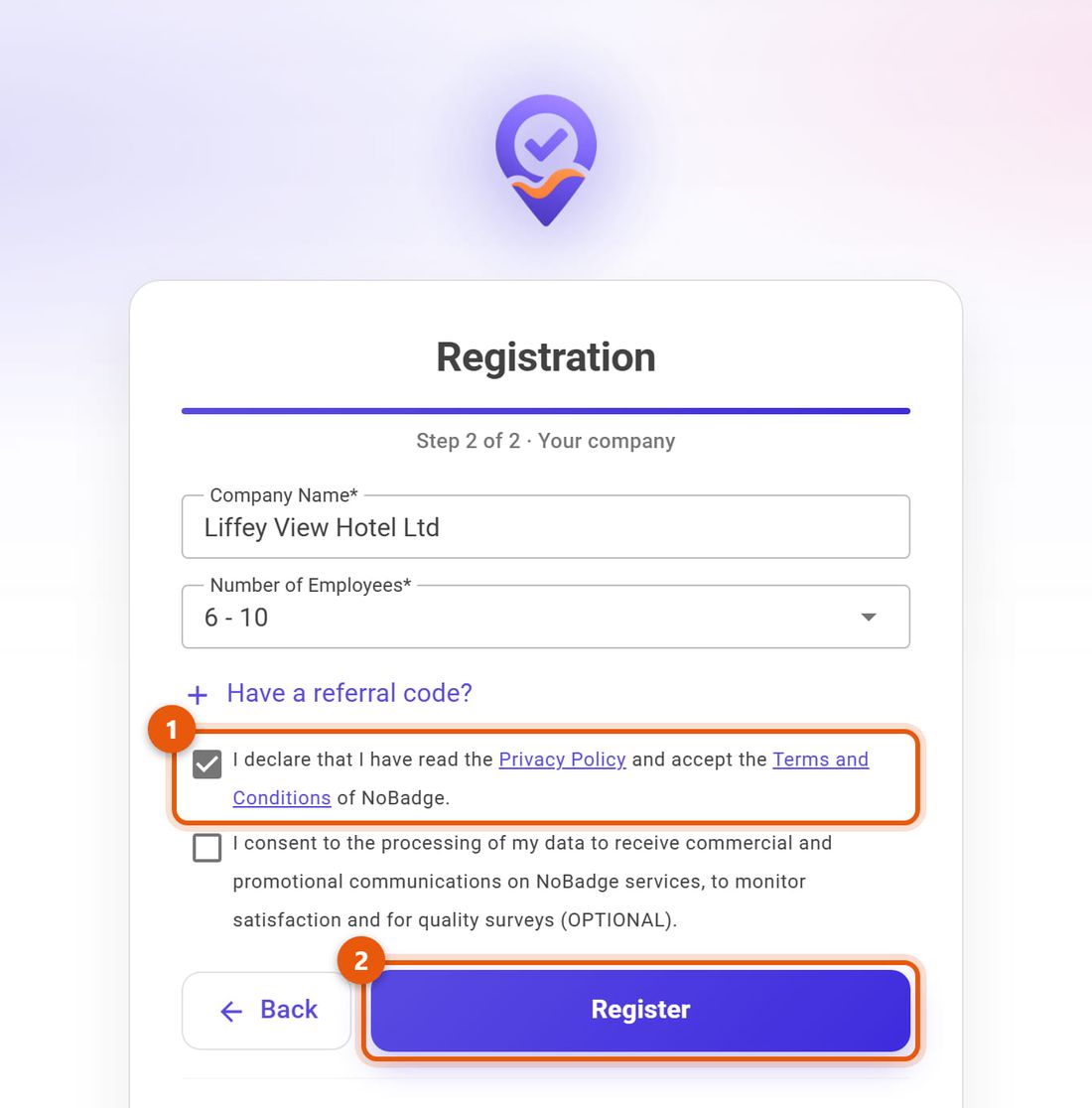
Sign-up, second step: company name, number of employees, consents and Register
3. Initial setup
Right after signing up, NoBadge asks you two questions.
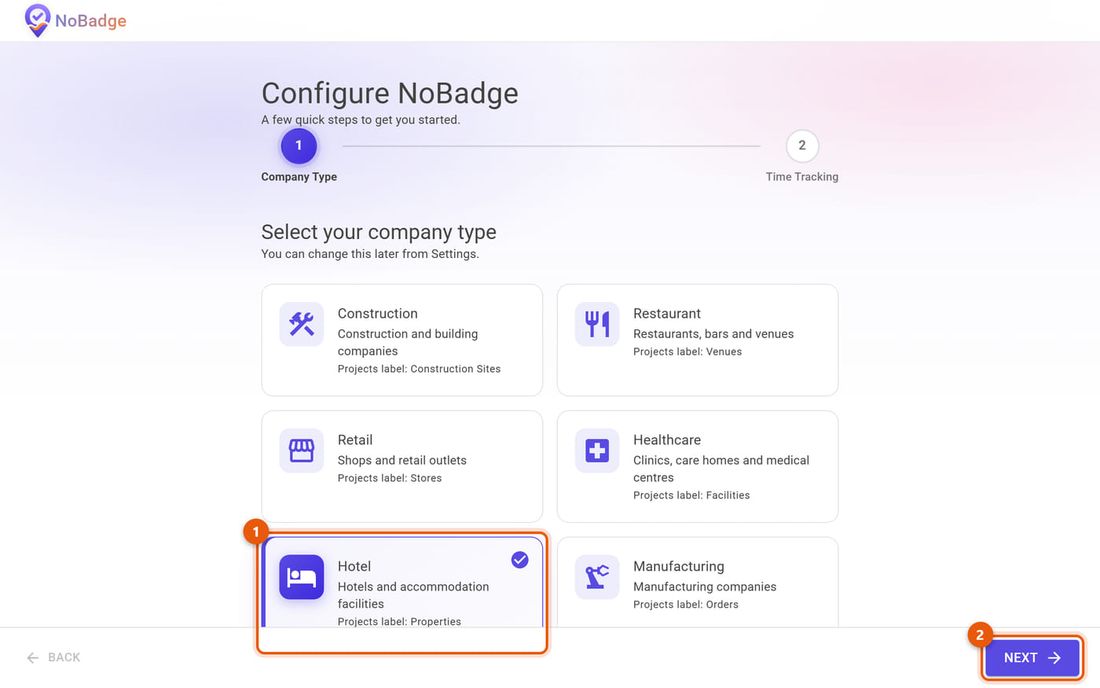
Company type. Choose your sector (1) and click Next (2). The sector decides what workplaces are called in the menu and suggests suitable settings; you can change it later in the settings.
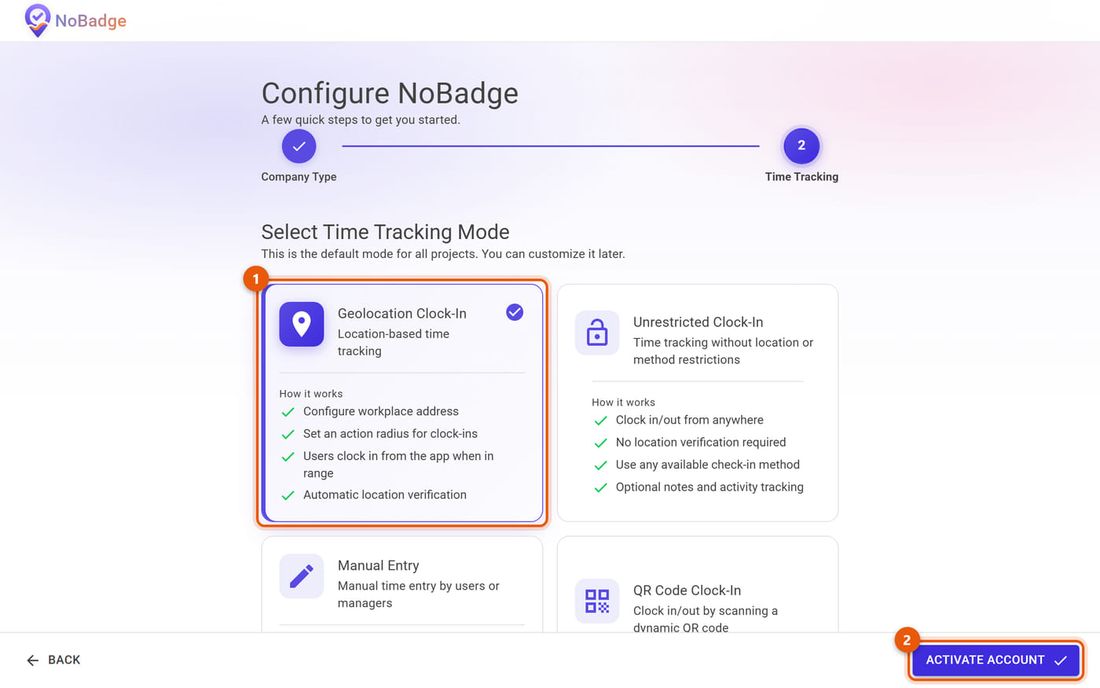
How your employees clock in. Choose the default mode (1) and click Activate account (2). The most common is Geolocation Clock-In: people can clock in from their phone only inside the workplace area. The other options (unrestricted clocking, QR code, manual time entry) are explained in section 5; you can pick a different mode for each workplace and each person.
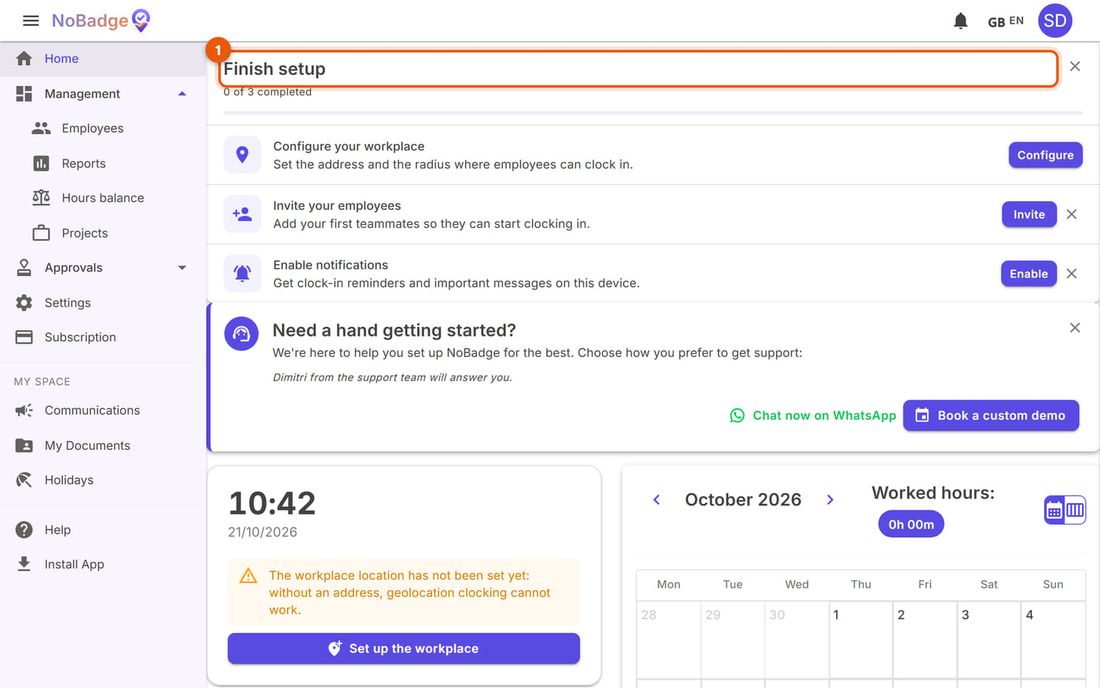
The "Finish setup" list. On Home you find the steps still to do (1): set up the workplace, invite your employees, turn on notifications. Each row has its own button; when you are done, close the list with the X. Until the workplace has an address, geolocation clock-in cannot work: it is the first thing to do (section 5).
After signing up you can use every feature free of charge for 15 days. Before it ends, add a payment method under Subscription (section 13).
4. The main screen and the menu
The menu on the left contains every feature; on a phone it opens with the three lines at the top left. For daily work you will mostly use the five highlighted items.
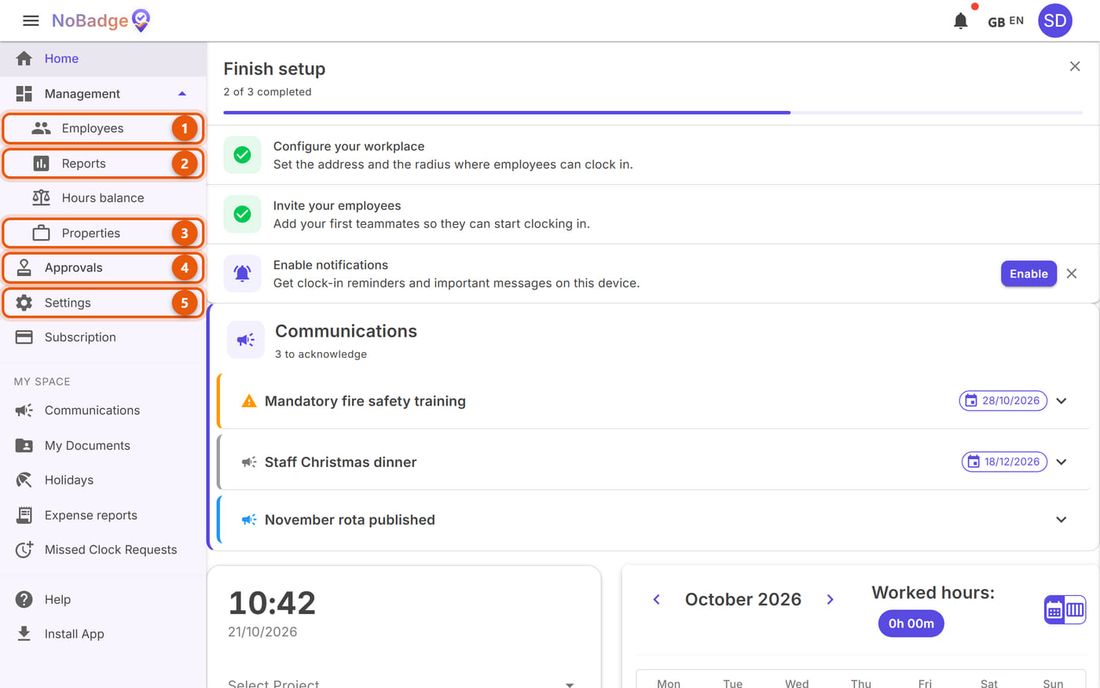
| # | Item | What it is for |
|---|---|---|
| 1 | Employees | Your people: add, invite, edit, deactivate them |
| 2 | Reports | The hours for the month, day by day: the page you will use most |
| 3 | Properties (or Sites, Venues...) | Your workplaces, with address, clock-in area and staff |
| 4 | Approvals | Holidays and time off, missed clock-ins, expense reports, special hours |
| 5 | Settings | The company's rules: clock-in mode, schedules and rounding, employee requests, notifications |
Under My space you find the same items your employees see: announcements (where you write new ones), your documents, your own holidays. At the top right the bell collects your notifications; your initials open the menu with light or dark theme and Sign Out.
5. Workplaces and clock-in area
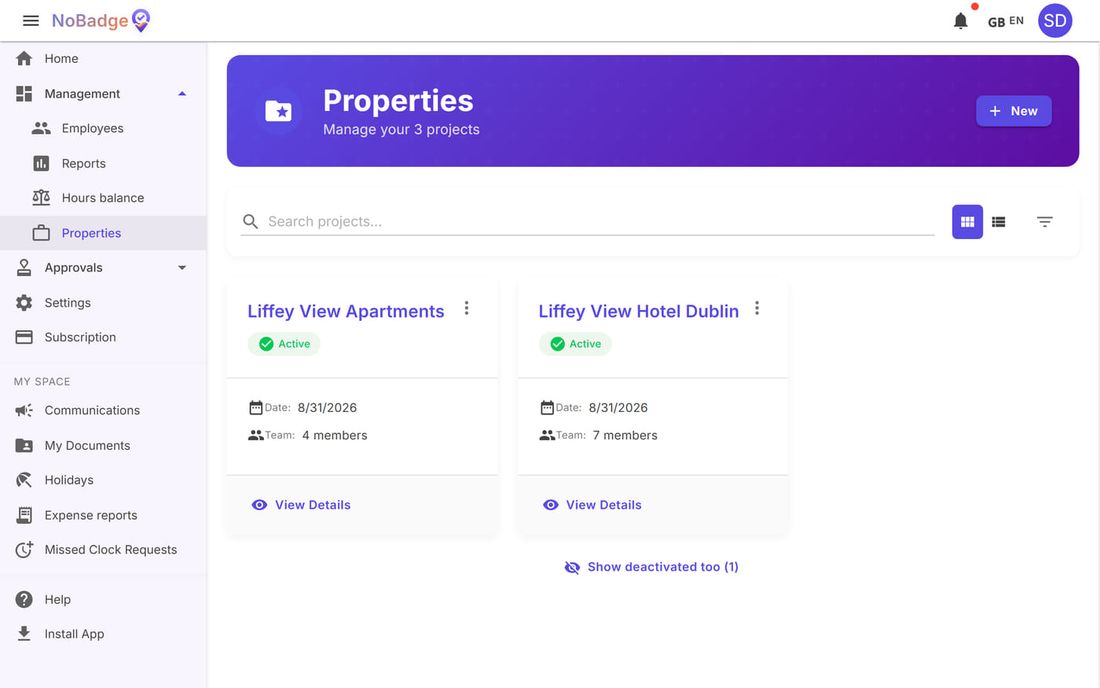
Under Properties (or whatever they are called in your sector) you find the places where people clock in. New adds one; opening one shows the Overview, Staff, Location, Documents and Travel tabs.
Address and area
The Location tab holds the workplace address and the Geofence Radius: the circle on the map inside which a phone can clock in. To change them click Edit Location: search for the address (or use your current position if you are on site) and choose the radius.
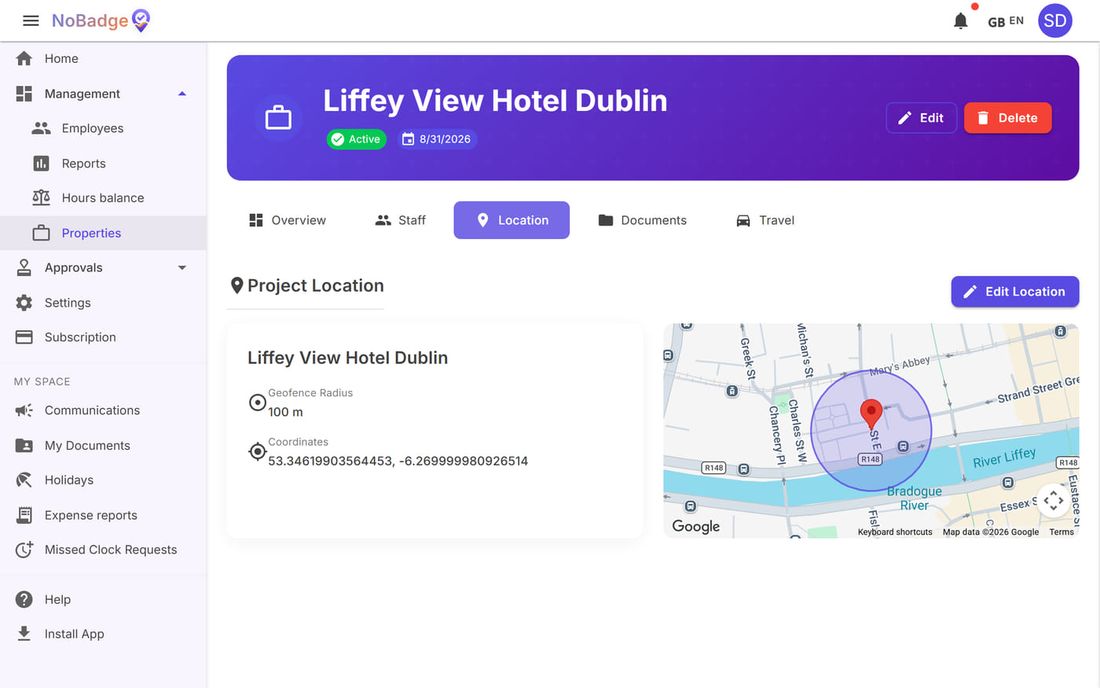
Which radius to choose. 50–100 metres is fine for a building in town. If the staff entrance is far from the address, or the area is large (a warehouse, a building site, a car park), widen the circle to cover it: a radius that is too tight makes the app refuse clock-ins from people who really are at work.
Who works at the site
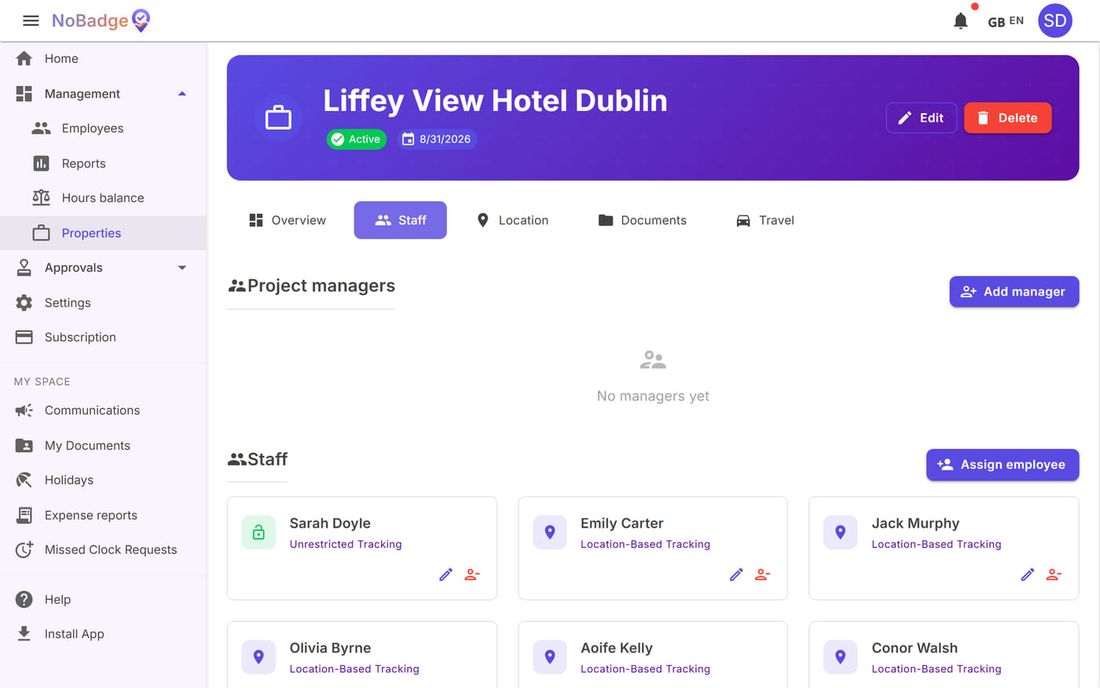
In the Staff tab: Assign employee adds people to the site (check the clock-in mode it suggests); the pencil next to a person changes how they clock in, the red icon removes them from the site; Add manager hands the site to someone (for example a shift leader) without making them an administrator: with the Manage employee hours permission they correct, day by day, the hours of the people who work there, but they don't see Reports or the requests to approve.
| Clock-in mode | What happens |
|---|---|
| Location-Based Tracking | People clock in from their phone only inside the workplace area; outside it the clock-in is refused (unless Clock Outside Geofence is on, section 12). The workplace needs a Location |
| Unrestricted Tracking | People clock in from anywhere, with one button |
| QR Code Tracking | People clock in by scanning with their phone a QR code shown on a screen at the workplace |
| Manual Time Entry | People type in their hours instead of clocking in |
| View Only | The person stays linked to the site (for example they receive announcements for that site) but cannot clock in there |
6. Employees: add, invite, deactivate
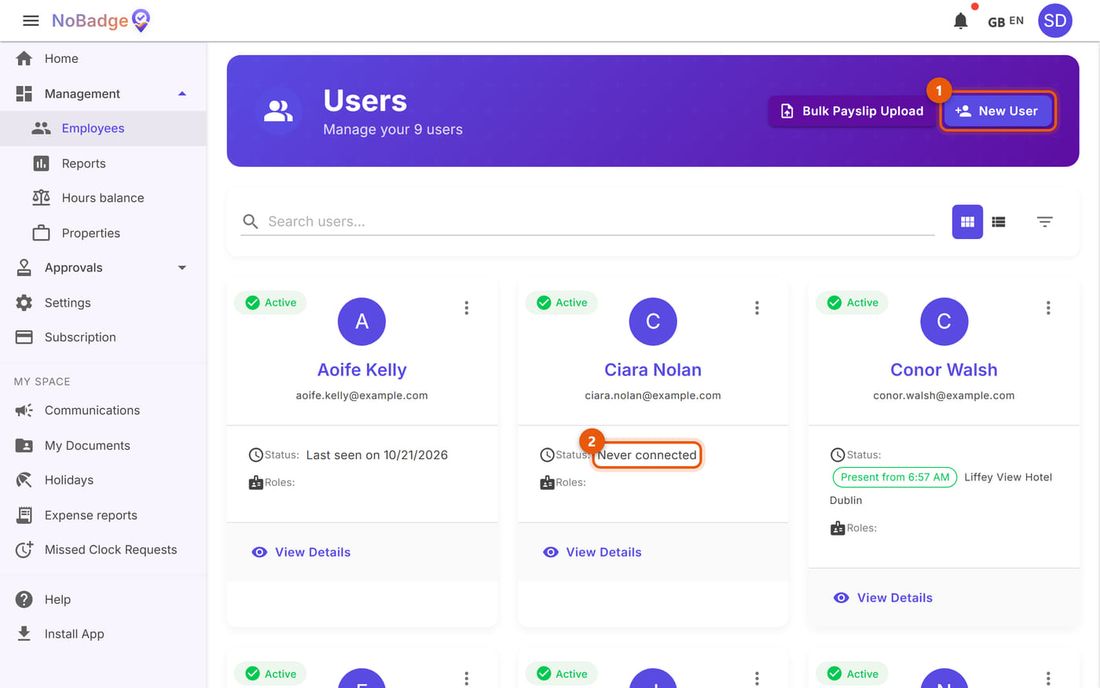
Under Employees (the page is called Users) there is a card for each person, showing their last login or Never connected (2) if they haven't opened the invitation yet. To add someone click New User (1); Bulk Payslip Upload uploads everyone's payslips at once (section 10).
Adding a person, in three steps
1. Who they are. First name, last name and email (required), phone optional. Under Advanced Settings you can add hire date, date of birth and tax code (used to match payslips). Then Next.
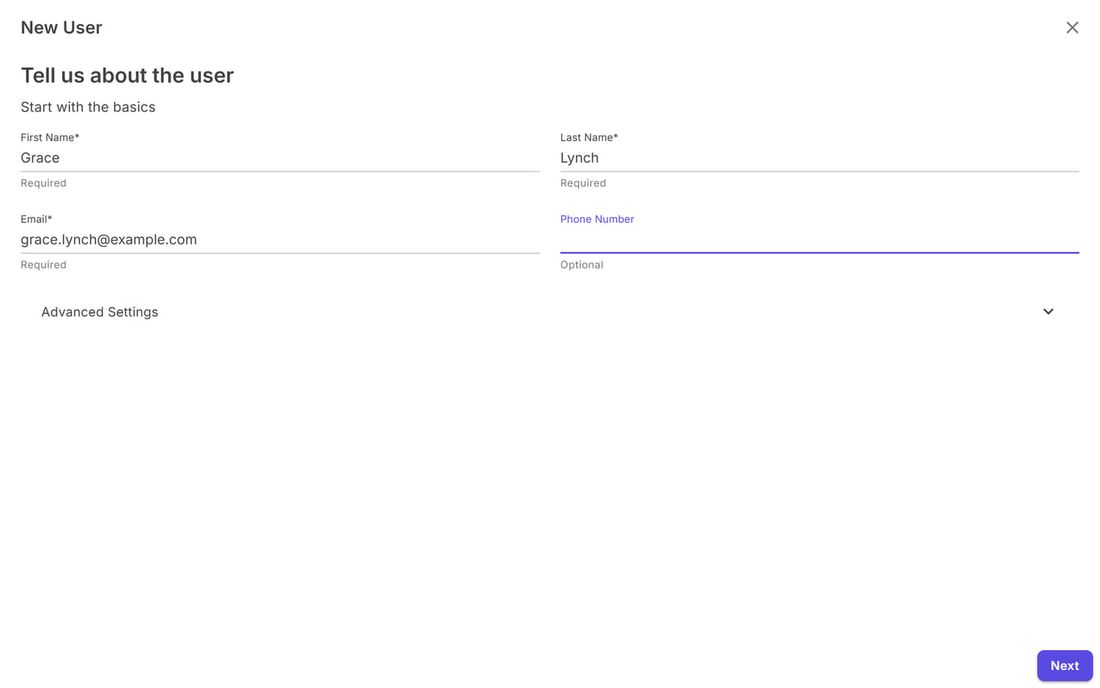
New user, first step: first name, last name, email and phone 2. Roles and sites. For people who only clock in, don't tick any role; tick Admin only for people who must run the company like you. Then tick their workplace and choose how they clock in: usually Location-Based Tracking. Click Create and Invite.
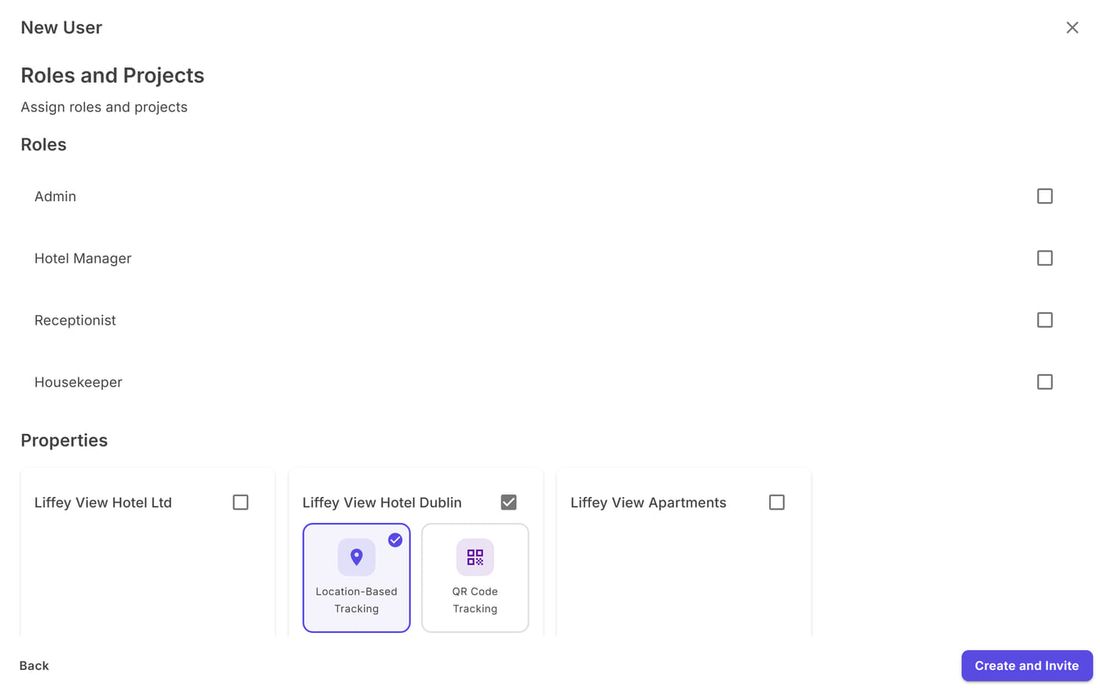
New user, second step: no role, property Liffey View Hotel Dublin with location-based tracking 3. Send the invitation. Note: the invitation is not sent automatically. Choose Send Email Invite (1), Share via WhatsApp (2) or Show and Copy Link (3). WhatsApp is often the quickest way for on-site staff. The link is valid for 7 days.
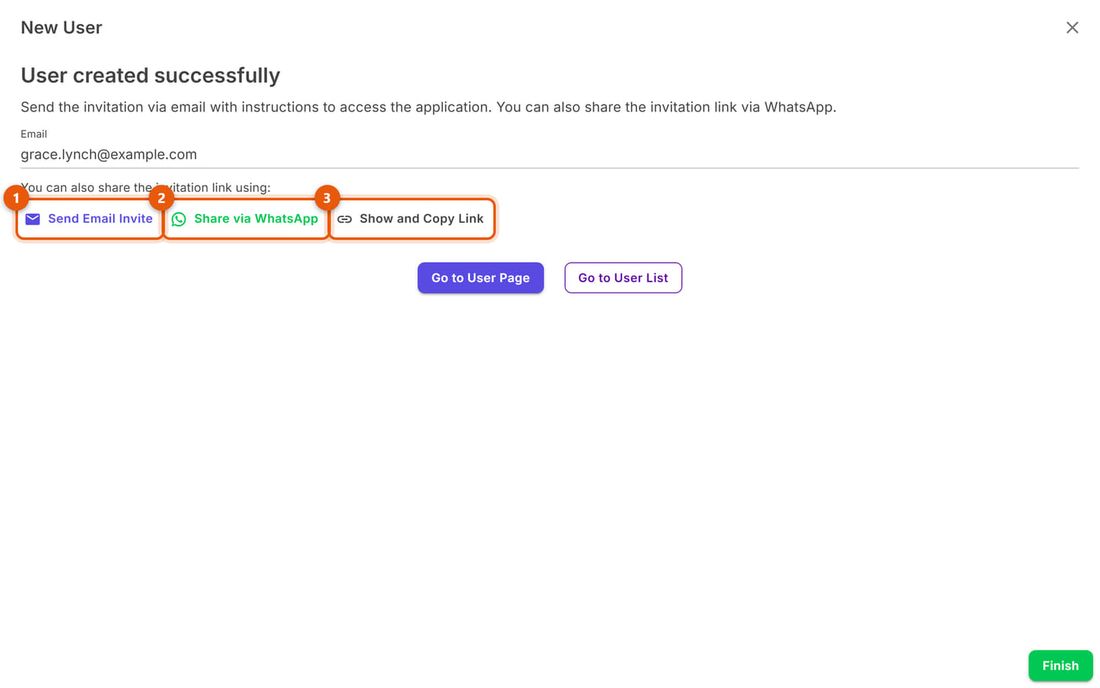
Last step: Send Email Invite, Share via WhatsApp, Show and Copy Link
A person's profile
Click a person to open their profile: Edit (1) for their details; Invite (2) sends a new invitation (email, WhatsApp or link), useful if they changed phone or the link expired; Deactivate (3) when they no longer work for you. Below are the calendar of their hours for the month and the Properties, Roles, Documents and Travel tabs.
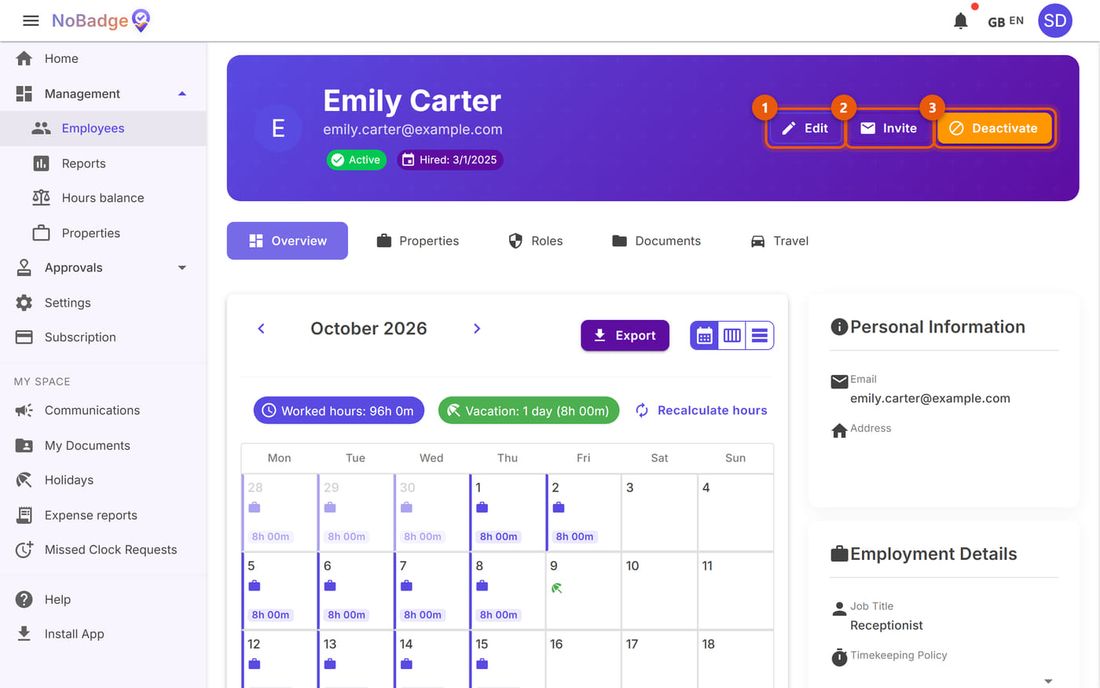
The person's hours stay in reports and exports, and if they come back you reactivate them from the same profile. To stop someone who has left from clocking in straight away, also remove them from their sites (Staff › red icon).
Each email address can belong to only one person in one company. If you see "This email address is already in use", you need a different address.
7. The hours for the month
Reports is a grid: one row per person, one column per day, the total at the far right. Today's column is framed (1); the arrows next to the month change month; Export to Excel (2) downloads the month (section 11).
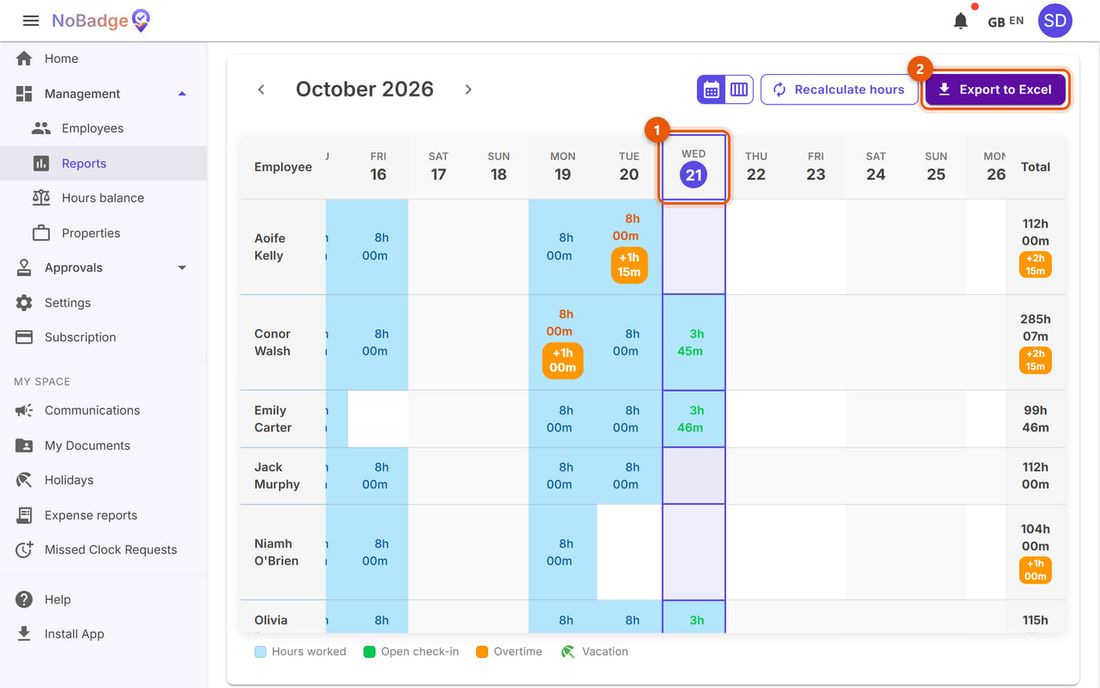
| What you see in the cell | What it means |
|---|---|
| Hours in blue on a light blue background ("8h 00m") | Regular hours recognised that day |
| Hours in orange with "+1h 00m" below | Day with overtime: the number is the regular hours, the label is the overtime |
| Hours in green | Clocked in but not out: the person is at work now, or forgot to clock out (section 8) |
| Holiday or leave icon | Approved absence; if it is faded, the request is still pending |
| Empty cell on a weekday | No clock-in: day off, unrecorded absence or missed clock-in |
Who is at work right now. The green cells in today's column are the people who clocked in and haven't left yet: in the example, at 10:42 Conor Walsh and Emily Carter have been in for almost four hours. Recalculate hours redoes the month's calculations with today's rules, after showing you what would change: use it when you change a working-hours rule.
The details of a day
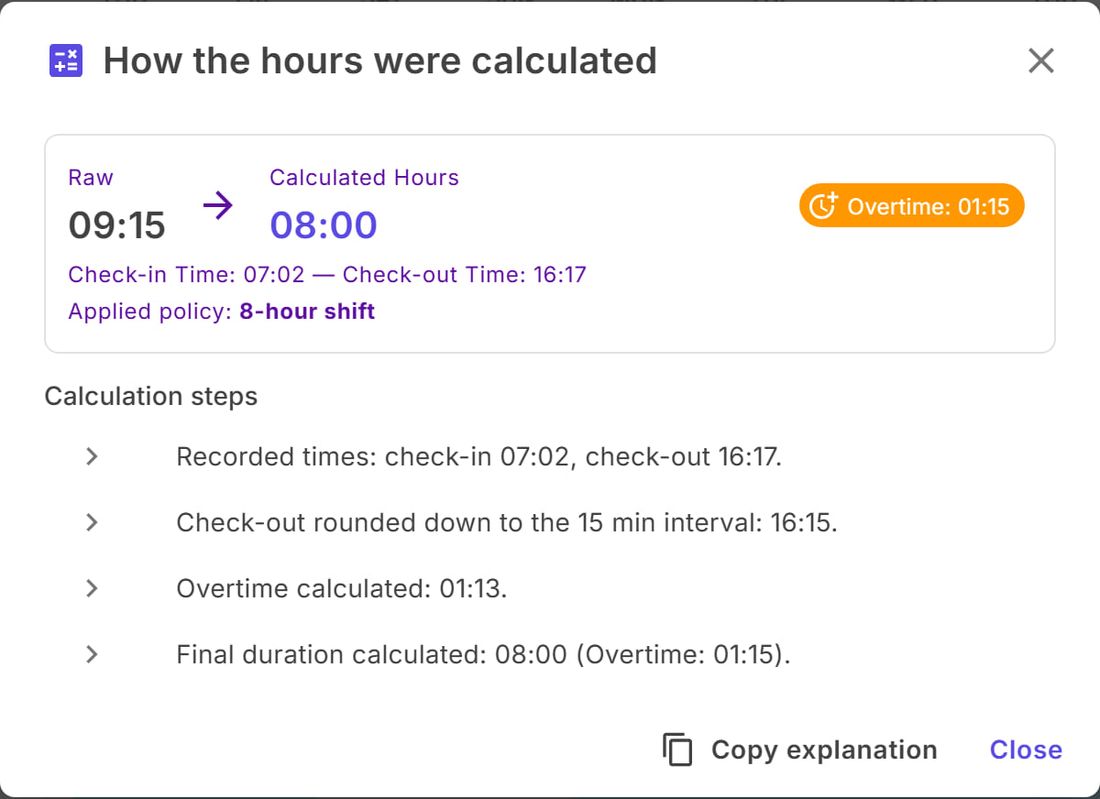
Click a cell to open that person's day: at the top the Recognised hours, below each clock-in with workplace, times and overtime. The calculator (1) explains how the hours were calculated, the pencil (2) edits the clock-in, Add Entry (3) adds one.
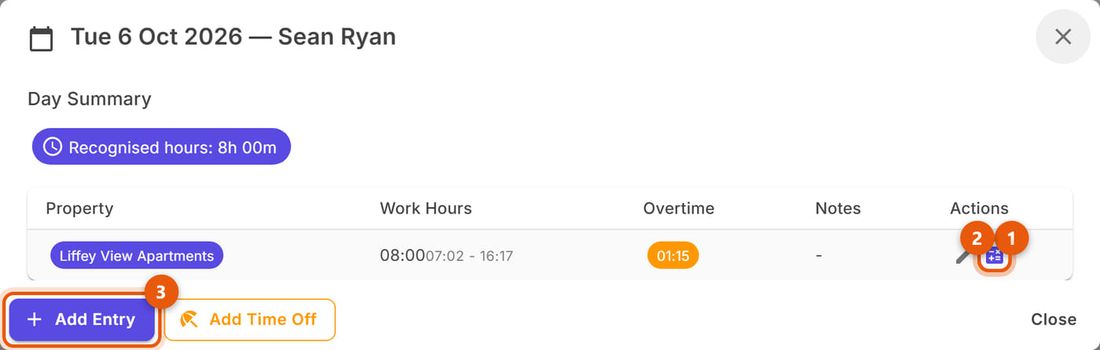
Example: Sean Ryan, Tuesday 6 October. He clocked in at 07:02 and out at 16:17, which is 9 hours 15 minutes. The company's rule (8-hour shift) recognises 8 regular hours and counts the rest as overtime; the calculator shows the steps: clock-out rounded down to the quarter hour (16:15), overtime of 1h 13m rounded to 1h 15m.
8. Correcting a clock-in
Corrections are made from the details of the day. Always write a note explaining why: it stays attached to the clock-in.
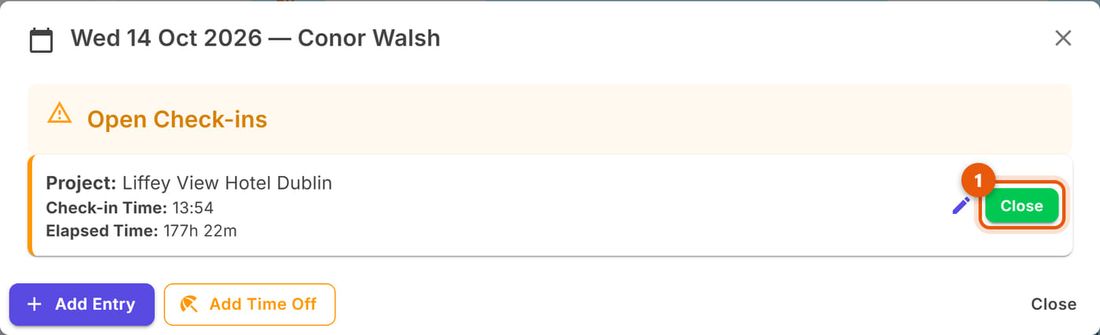
A day left open. If someone forgets to clock out, the cell stays green and the hours keep growing: in the example Conor Walsh clocked in on 14 October and never clocked out. Open the day and click Close (1) next to the open clock-in.
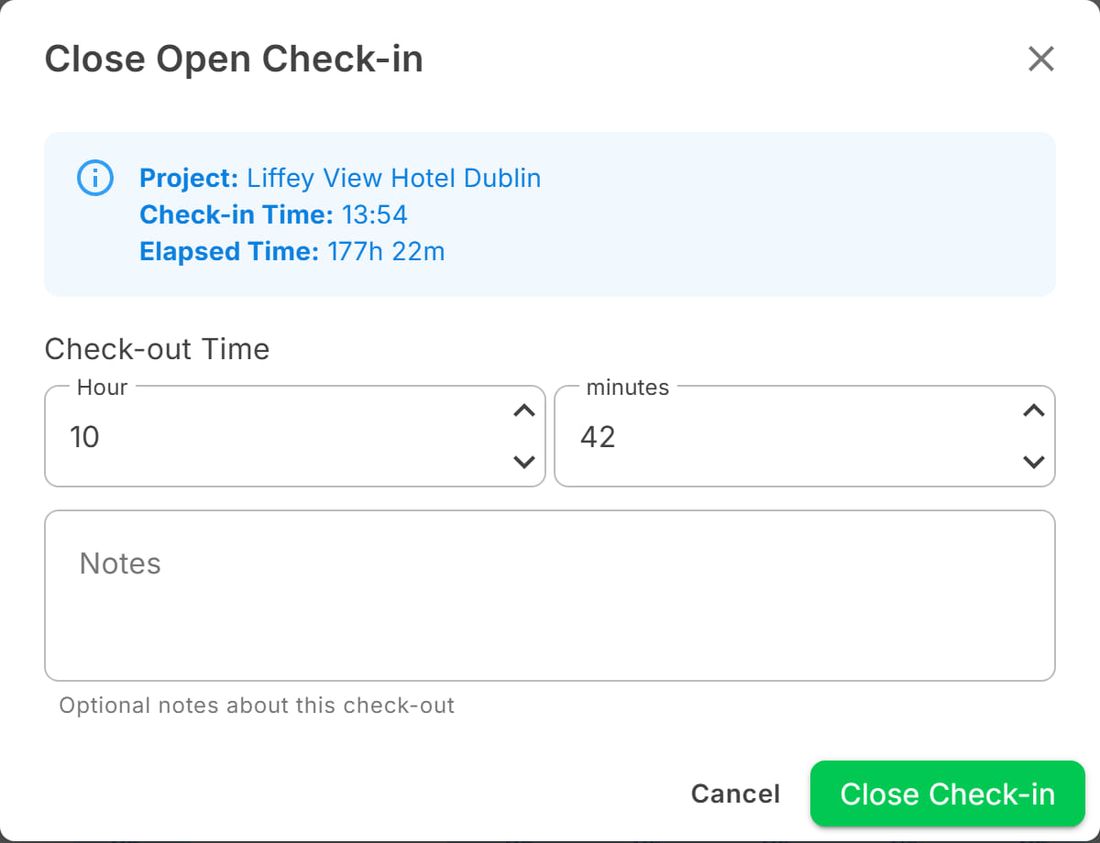
Enter the Check-out Time, add a note (for example "forgot to clock out, confirmed by the shift leader") and click Close Check-in. From then on the day counts the right hours.
Editing or adding. With the pencil you change date, workplace, times, lunch break and note, or delete the clock-in. Add Entry creates a new one (if you leave the clock-out empty, the person shows as still at work). For a day of holiday use Add Time Off: the absence is recorded as already approved.
9. Approving requests
When someone requests holidays, reports a missed clock-in or submits an expense report, you get a notification under the bell at the top right. Requests wait for you: until you answer, they don't count.
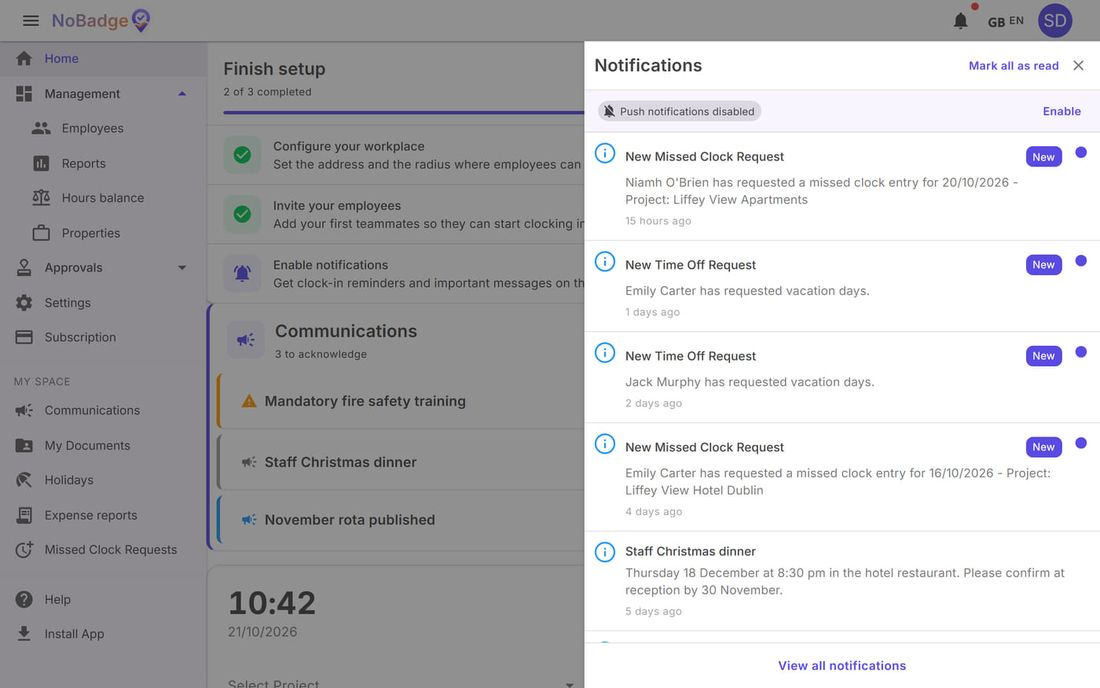
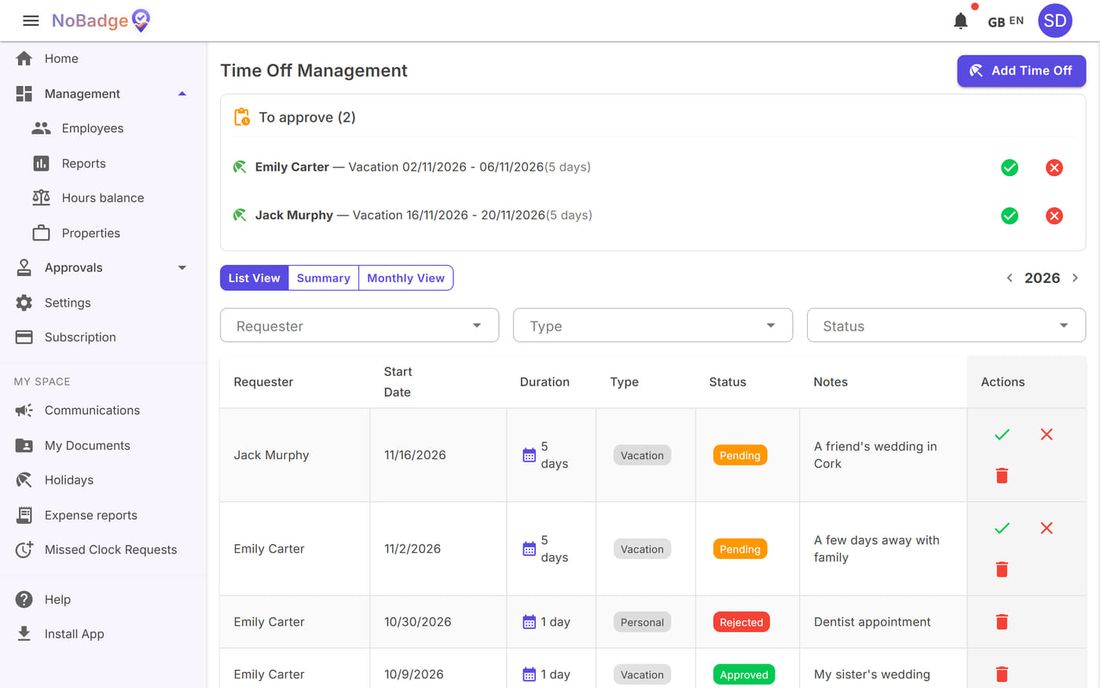
Holidays and time off. Under Approvals › Holidays Management, the box at the top lists the pending requests: the green tick approves, the red X rejects (you can write a reason, which the person sees). Below is the history, with filters and a monthly view. With Add Time Off you record an absence yourself, even for several people at once (for example a company closure).
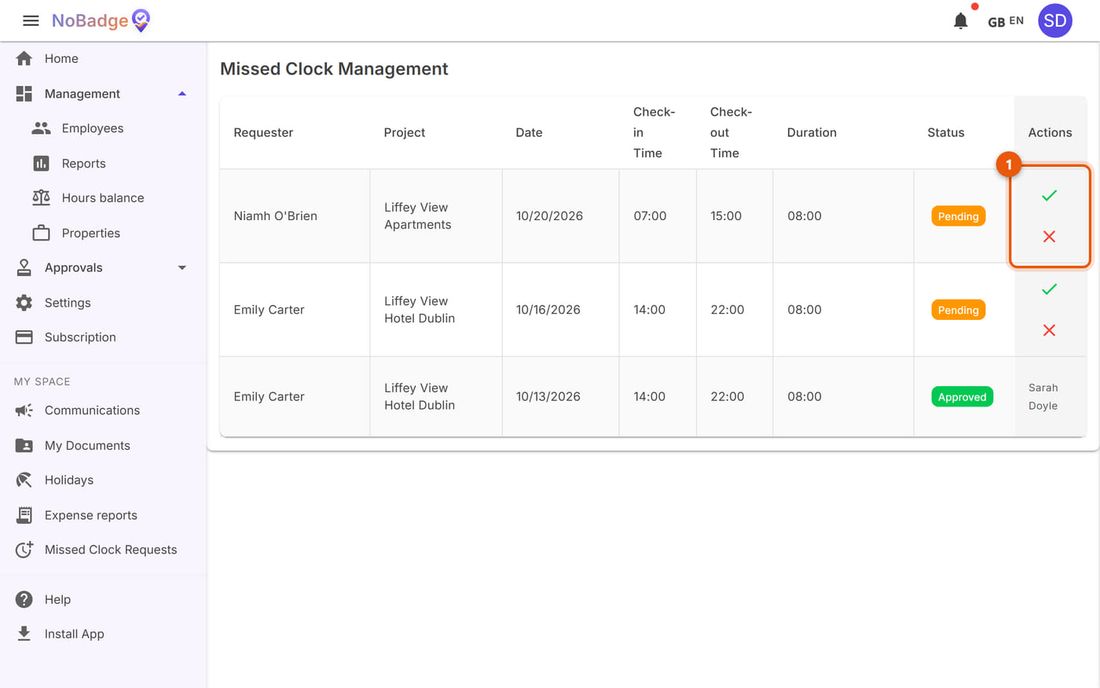
Missed clock-ins. Switch them on in Settings (Employee requests › Missed Clock Requests). Under Approvals › Missed Clock Management each row says who, where, which day and with what times: in the Actions column (1) the green tick approves and the clock-in is created, the red X rejects.
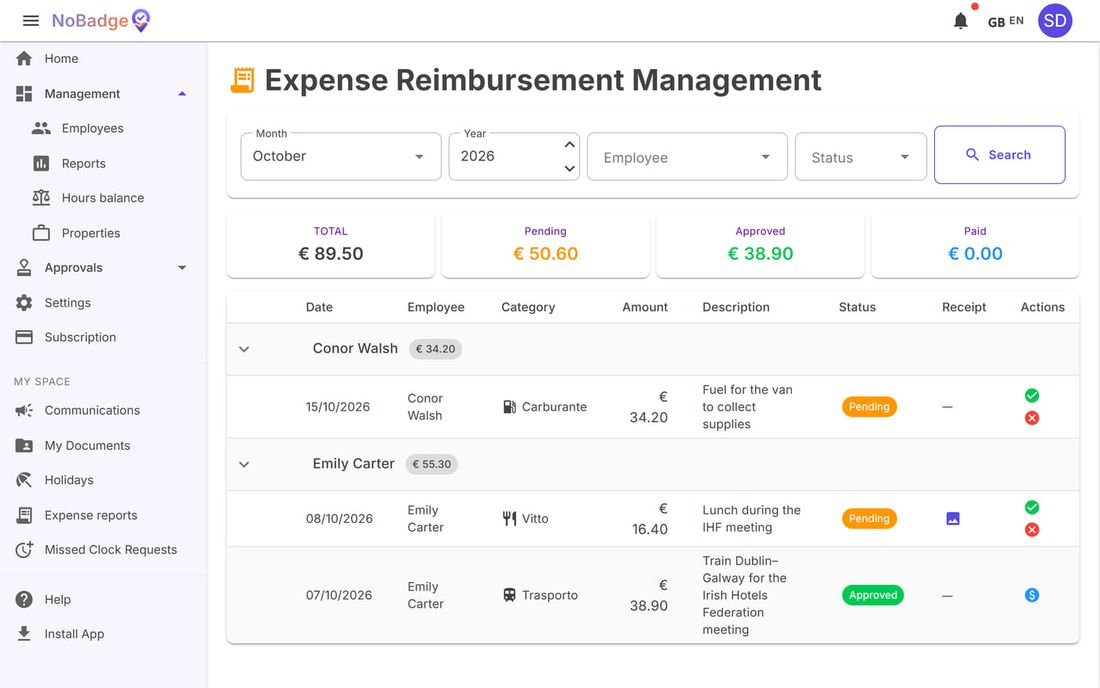
Expense reports. Switch them on in Settings (for everyone or only for some people). Under Approvals › Expense Reimbursement Management you see the month's expenses grouped by person, with the total and how much is pending, approved and paid; open the receipt, approve or reject, and mark as paid the ones you have reimbursed.
10. Announcements and documents
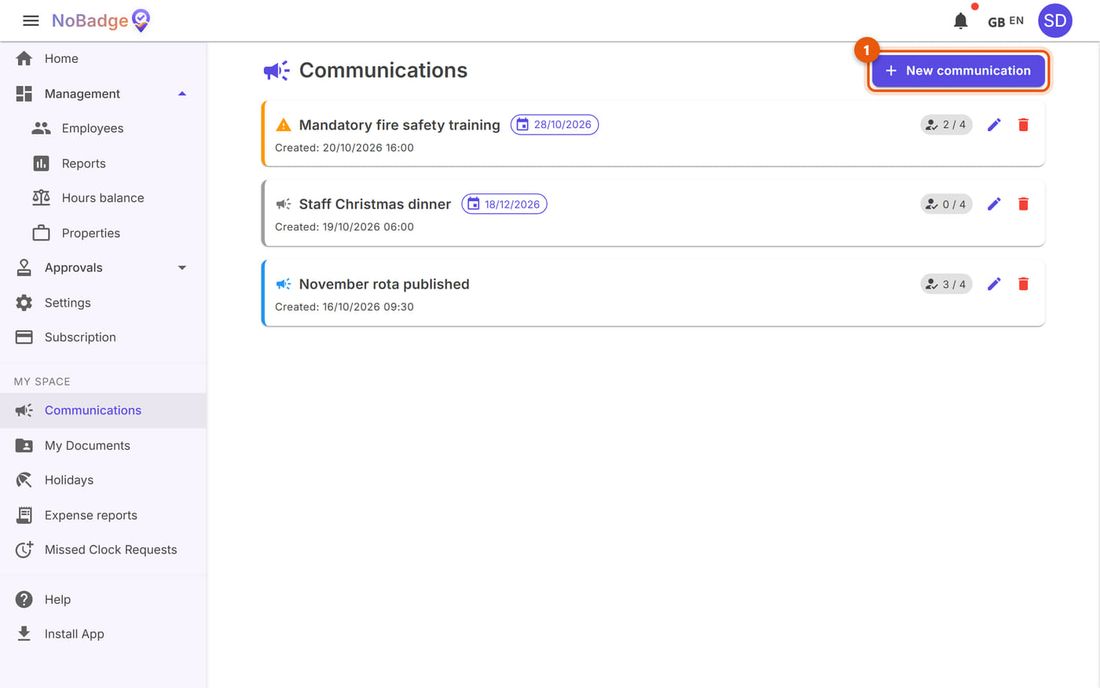
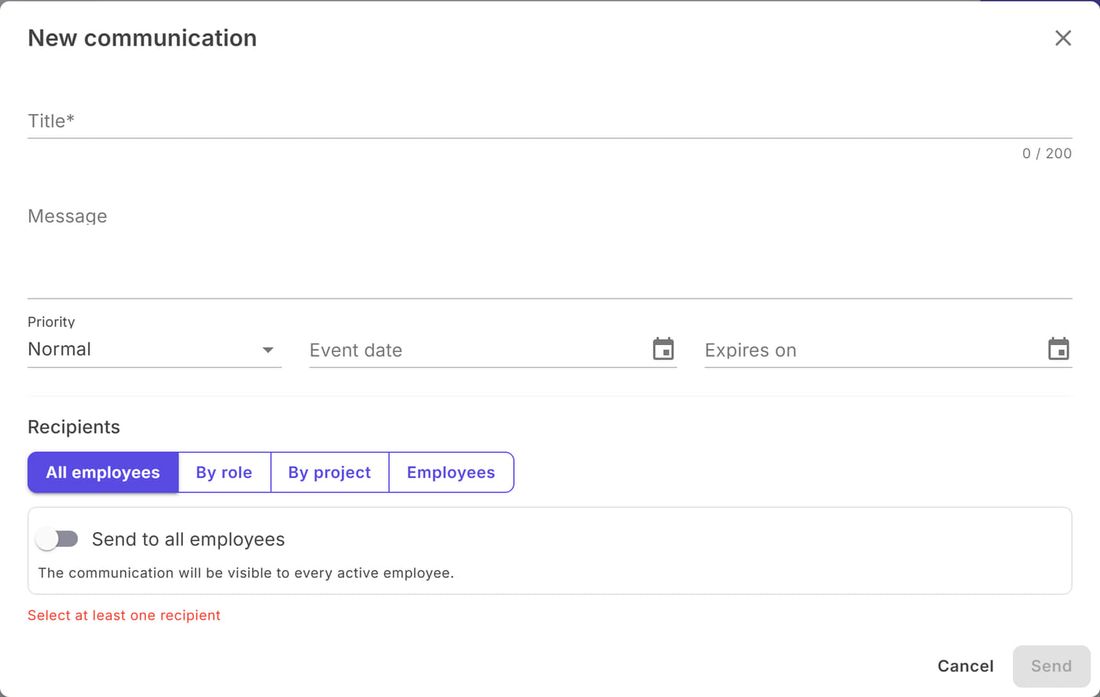
Announcements. Under Communications you write notices for everyone, for one workplace, a department, a role or individual people: click New communication (1). Next to each announcement you see how many people have already confirmed it out of how many received it; the pencil edits it, the bin deletes it.
Write a title and a message, choose the priority and, if needed, the event date and the expiry date, then the recipients, and click Submit. Employees see it at the top of their Home and get a notification.
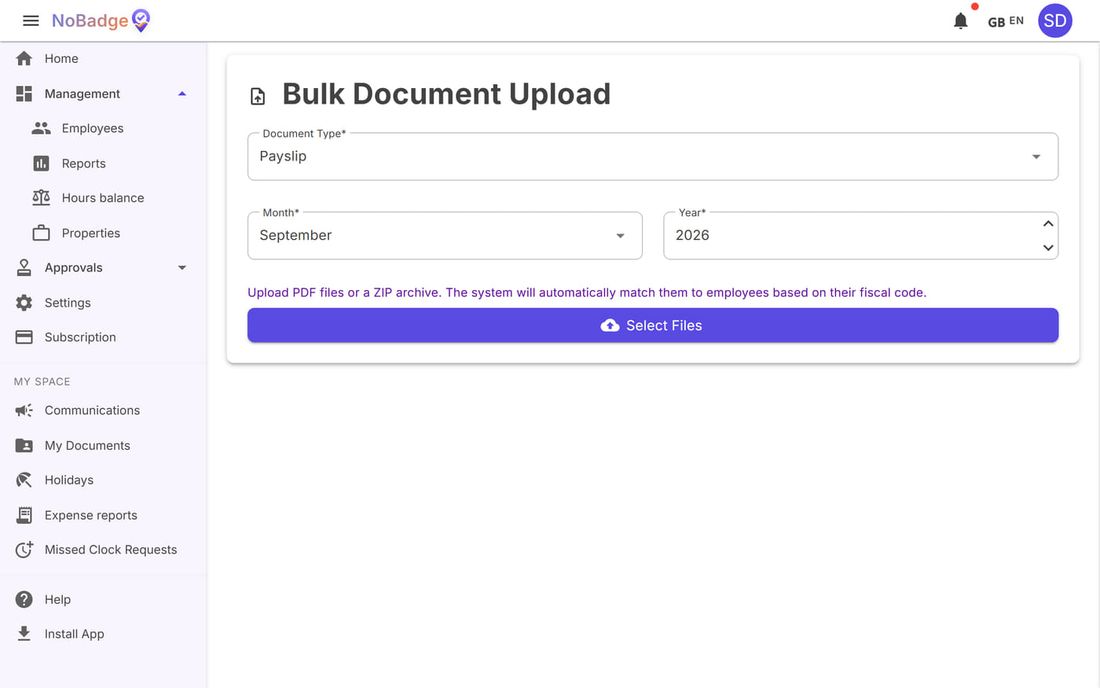
Payslips. From Employees › Bulk Payslip Upload choose the type (Payslip or Certificazione Unica, the Italian annual tax statement), the month and the year, then upload the PDFs or a ZIP archive: NoBadge matches them to people by tax code. Check the matches and confirm: each payslip goes into the person's My Documents, in the year's payslips folder. A single document (a contract, a certificate) is uploaded from the person's profile instead, Documents tab.
11. Downloading the report in Excel
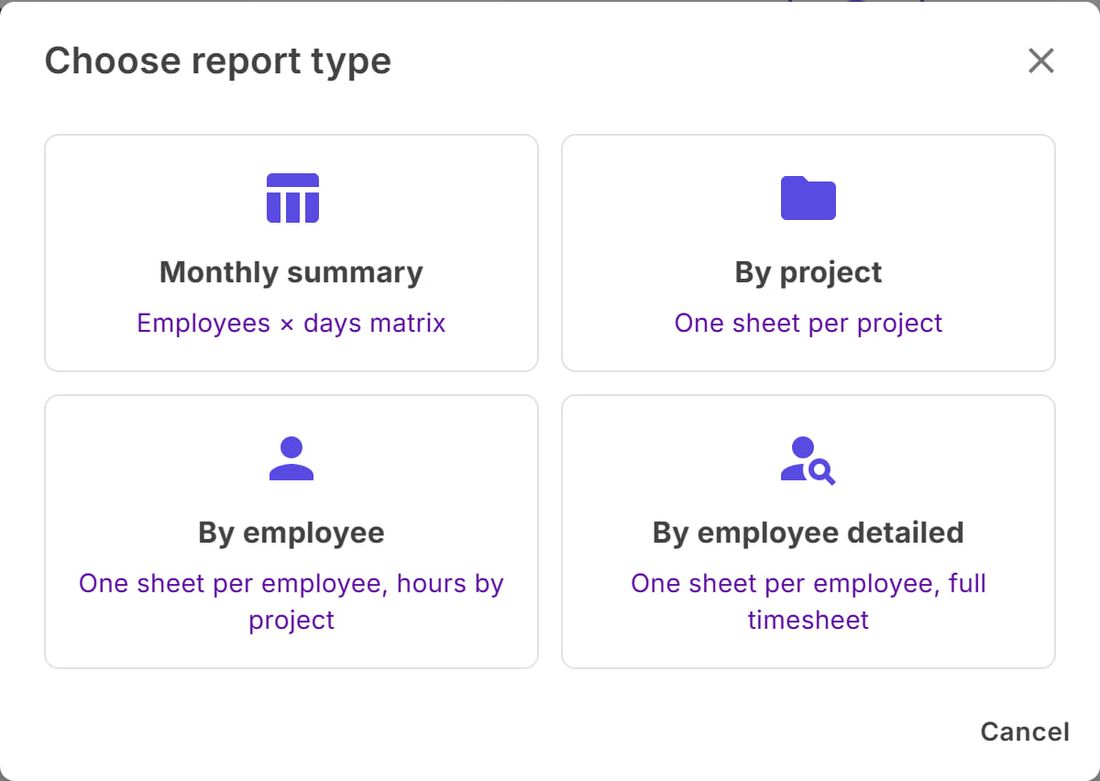
In Reports choose the month, then click Export to Excel: you can choose between four files, all for the month on screen.
| File | What it contains | When to use it |
|---|---|---|
| Monthly Overview | A people × days table, like the Report | For an overall check or to send to your payroll provider |
| By project | One sheet per workplace, with the hours of the people who worked there | To know how many hours each workplace took |
| By employee | One sheet per person, with hours split by workplace | To check one person |
| By employee detailed | One sheet per person with every clock-in | For a dispute or a detailed check |
Before downloading, close any open days and answer the requests. An open day goes into the Monthly Overview and the By project file with the hours elapsed up to the moment of the export; holidays and missed clock-ins still pending are not in any file.
12. Settings and working-hours rule
Admin Settings collects the company's rules, grouped by topic: clock-ins, employee requests, notifications and more. Each card says what it does and how it is set; the search box at the top finds a setting straight away. Among the most useful: Clock Outside Geofence (people outside the area can still clock in, giving a reason), Auto-close forgotten clock-outs, Admin Clock-In Notifications.
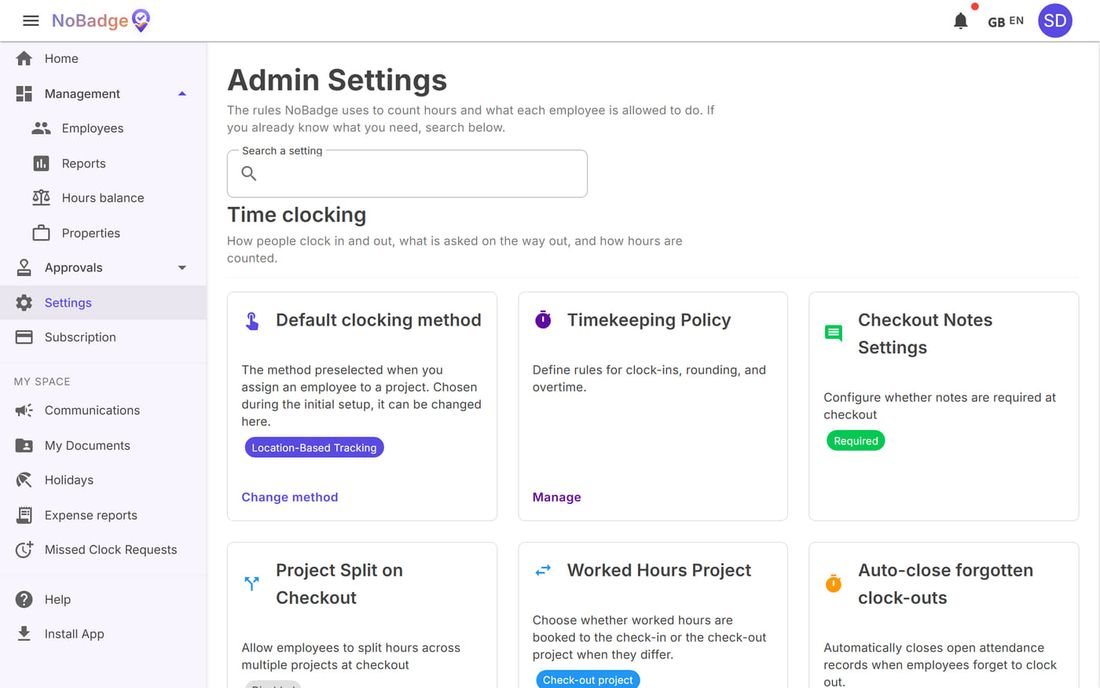
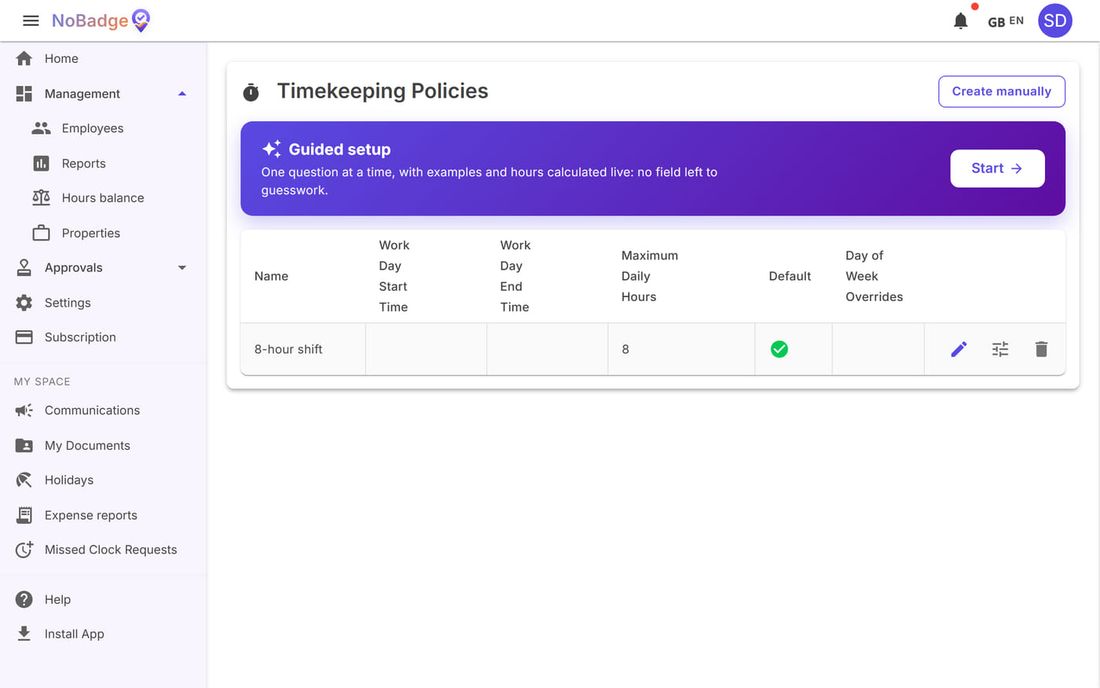
The working-hours rule. NoBadge doesn't simply count the time between clock-in and clock-out: it applies the working-hours rule, which decides rounding, maximum hours and overtime. From Timekeeping Policy › Manage you reach the Timekeeping Policies: the one with the green tick applies to everyone, except for exceptions for a workplace or a person. To create or change one use Guided setup › Start: it asks one question at a time and shows straight away, with examples, how many hours would result.
| Clock-ins | How the 8-hour shift rule reads them | Recognised hours | Overtime |
|---|---|---|---|
| 06:57 → 15:03 | Clock-in moved to 07:00, clock-out to 15:00 | 8h 00m | — |
| 13:58 → 23:13 | Clock-in moved to 14:00, clock-out to 23:00 | 8h 00m | 1h 00m |
| 07:02 → 16:17 | Clock-in within the grace period, clock-out at 16:15; overtime of 1h 13m to the nearest quarter hour | 8h 00m | 1h 15m |
If you change the rule, use Recalculate hours in Reports to apply it to the days already past in the month.
13. Subscription
Under Subscription you see when your trial ends and add your payment method: a card for the monthly payment, based on your active users. The price you see there is the one for your plan.