What the free timesheet template contains
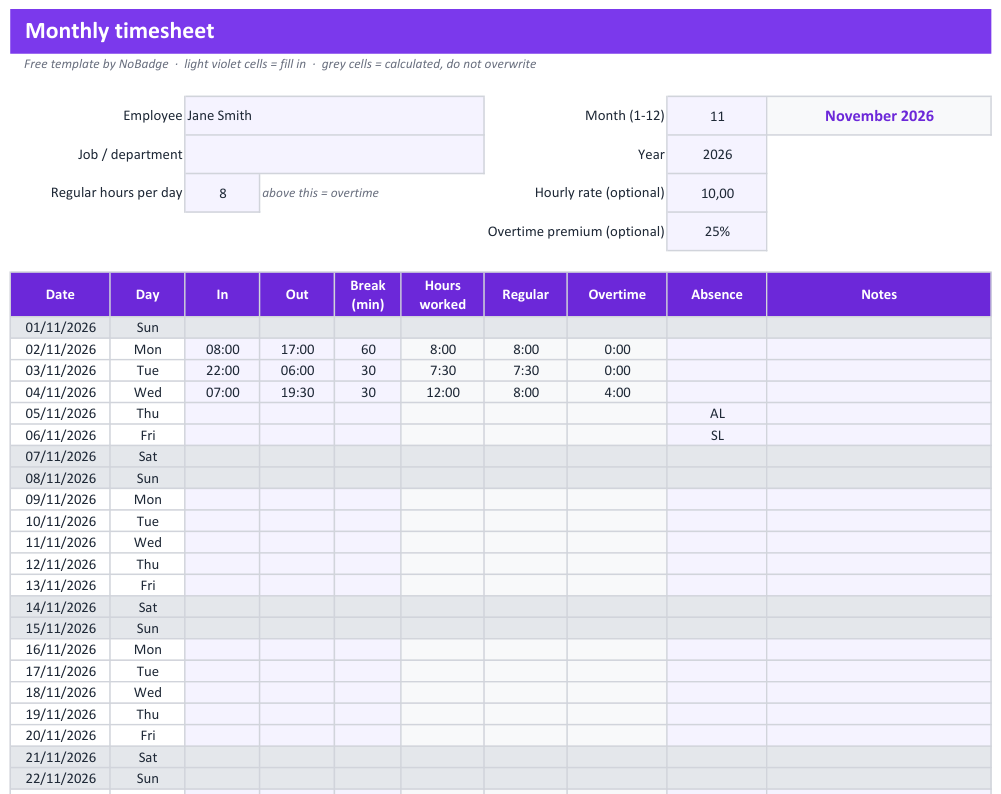
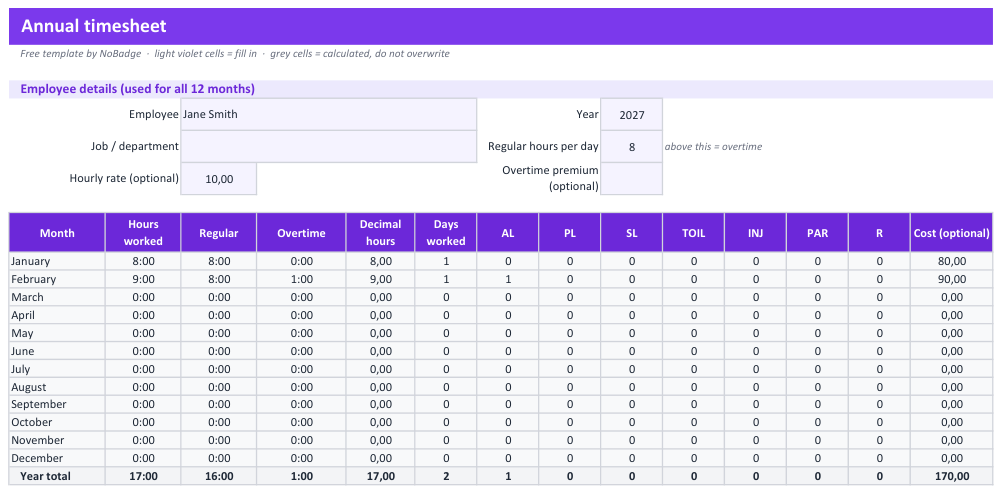
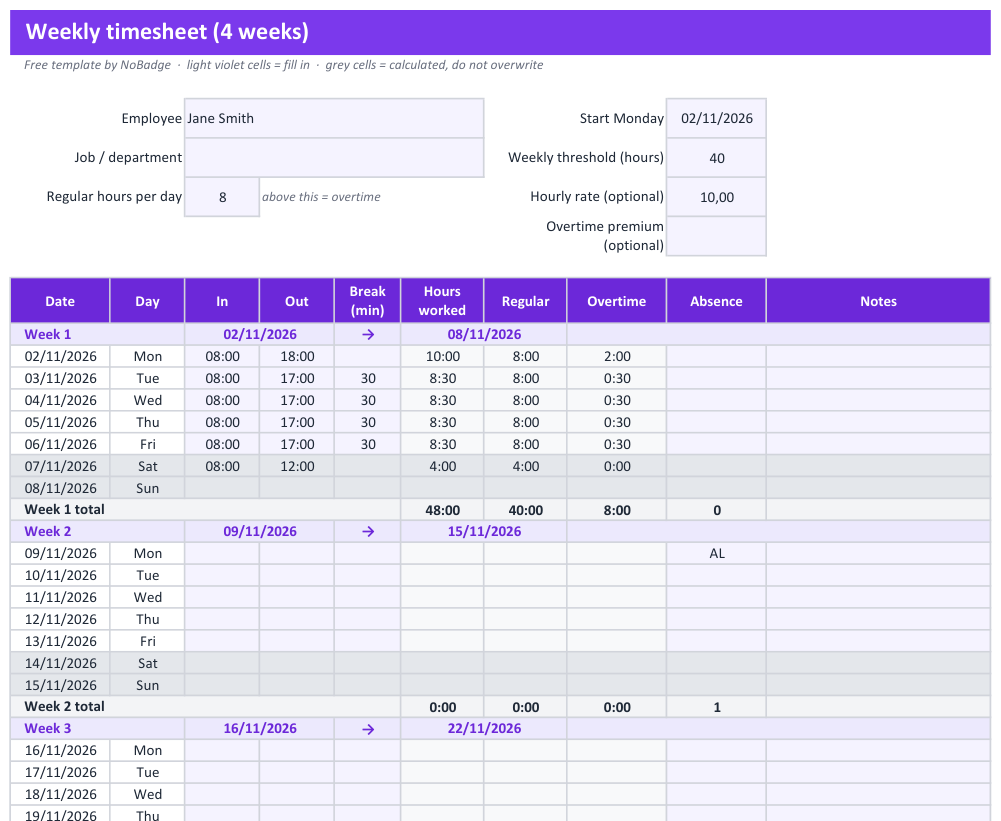
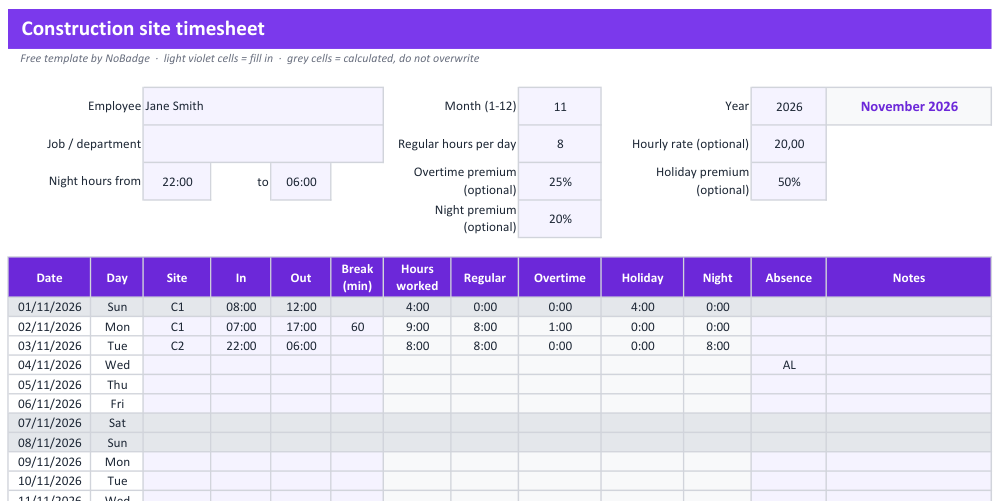
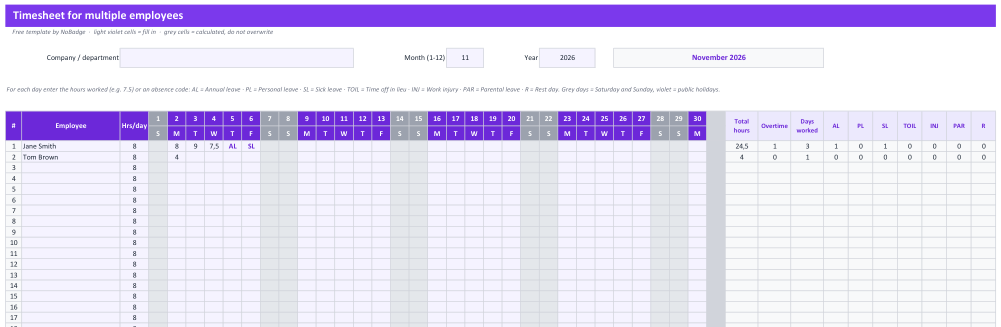
The template is built around one principle: enter each shift once, in one log, and let formulas do the rest. From that log you get three views, so you can pick the one that matches how you pay your team.
| View | Best for | What it shows |
|---|---|---|
| Weekly timesheet | Variable schedules, weekly pay, shift work | Monday to Sunday per employee: start, finish, break, daily hours, weekly total, overtime and a manager sign-off |
| Monthly timesheet | Monthly payroll and holiday tracking | A 31-day grid per employee with absence codes, monthly totals and overtime |
| Yearly summary | Year-end checks and holiday entitlement | Hours, overtime and leave per employee for each of the 12 months, with running totals |
Every view uses standard functions only (MOD, SUM, SUMIFS, COUNTIFS, MAX), with no macros, so the same workbook works in Microsoft Excel and Google Sheets.
The template layout: columns and formulas
Open a blank workbook in Excel or Google Sheets, name the first sheet "Log" and create these columns in row 1. The formulas below assume your first data row is row 2; copy them down as far as you need.
| Column | What to enter | Formula or format |
|---|---|---|
| A · Date | The working day | Date format, for example 21/10/2026 |
| B · Employee | Name or employee number | Drop-down list from a "Staff" sheet |
| C · Site or project | Where the work was done | Drop-down list of your sites |
| D · Start | Clock-in time | Time format hh:mm |
| E · Finish | Clock-out time | Time format hh:mm |
| F · Break | Unpaid break in minutes | Whole number, for example 30 |
| G · Hours worked | Nothing: calculated | =MOD(E2-D2,1)*24-F2/60 (handles night shifts) |
| H · Contracted hours | Daily contracted hours | Number, for example 8 |
| I · Overtime | Nothing: calculated | =MAX(0,G2-H2) |
| J · Absence code | AL, SL, PH, UL or PL | Drop-down via data validation |
| K · Approved by | Manager initials and date | Text |
Absence codes
Use short, fixed codes so totals can be counted by formula: AL annual leave, SL sick leave, PH public or bank holiday, UL unpaid leave, PL parental leave. Record the type of absence, not medical details.
Weekly and monthly totals
On a "Summary" sheet, list employees in column A and put the first day of the period in cell B1. Total hours for the week are =SUMIFS(Log!G:G,Log!B:B,$A2,Log!A:A,">="&$B$1,Log!A:A,"<"&$B$1+7). For a month, replace $B$1+7 with EDATE($B$1,1). Overtime works the same way on column I.
Days of leave
Count annual leave days in the same period with =COUNTIFS(Log!B:B,$A2,Log!J:J,"AL",Log!A:A,">="&$B$1,Log!A:A,"<"&EDATE($B$1,1)). Repeat with SL, PH, UL and PL for the other codes.
Yearly summary
Put the months 1 to 12 across row 1 of a "Year" sheet and, in the SUMIFS formula above, replace $B$1 with DATE(2026,B$1,1) and the end date with EDATE(DATE(2026,B$1,1),1). You get hours per employee per month and a yearly total in the last column.
How to use the template in six steps
- Set up the Staff sheet. Enter each employee's name, role, contracted daily hours and holiday entitlement.
- Add the drop-down lists. Use data validation for employee, site and absence code so nobody types "anual leave".
- Protect the formulas. Lock columns G and I and the Summary sheet: in Excel via Review, Protect Sheet; in Google Sheets via Data, Protect sheets and ranges.
- Record every day. Employees or a site manager enter start, finish and break the same day, not at the end of the week.
- Check and approve. Each week, the manager reviews the Summary sheet, looks at overtime and initials the rows in column K.
- Export for payroll. At month end, filter the period and save it as PDF or CSV for your accountant or payroll provider. Archive the approved copy in a folder with restricted access.
Want the same timesheet without typing a single time?
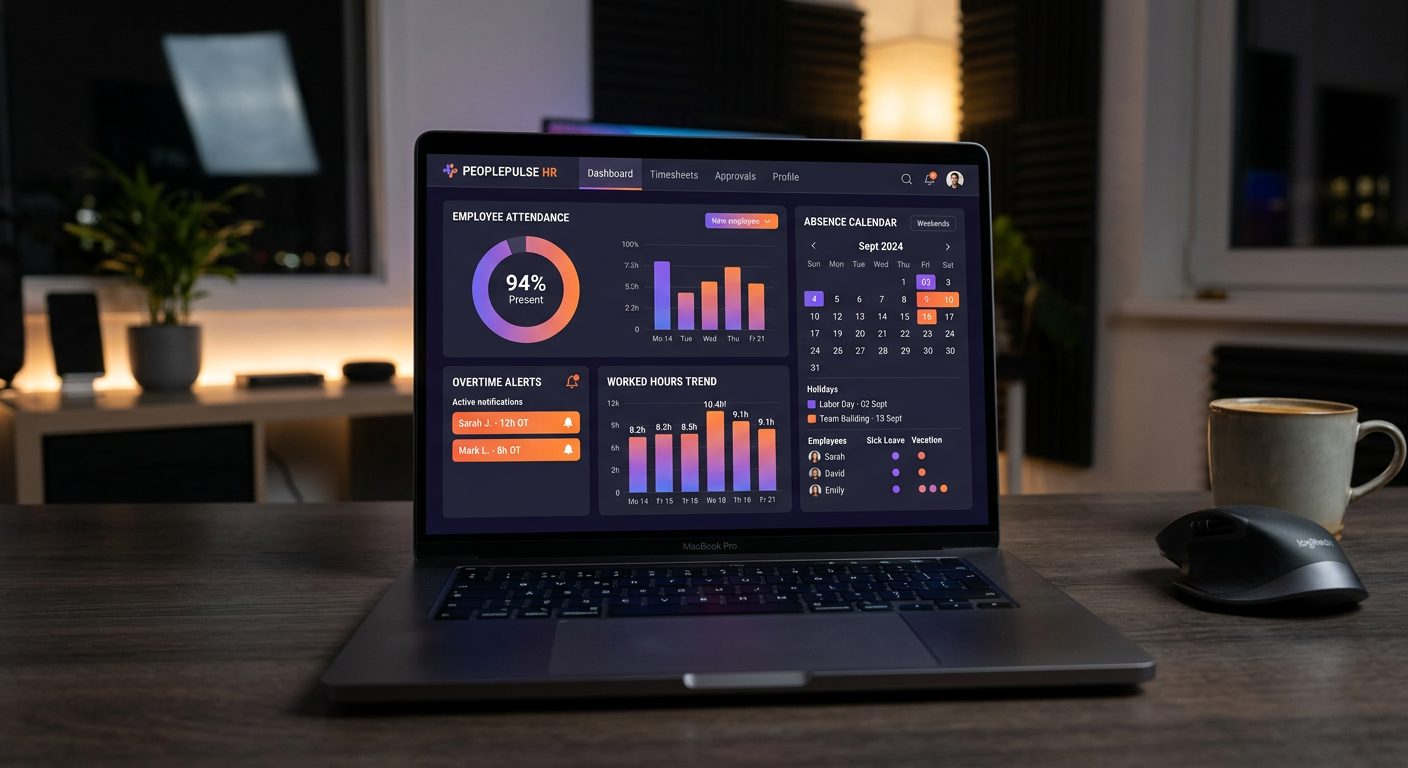
With NoBadge, employees clock in on their own smartphone by GPS or dynamic QR code. Hours, overtime and absences are totalled automatically and exported to Excel in one click, in the same kind of file your accountant already uses.
Tips for accurate timesheets
- Never type totals. If a total does not come from a formula, it will eventually be wrong.
- Use hh:mm for times and decimals for hours. 7:30 is a time; 7.5 is a number of hours. Mixing them is the most common Excel timesheet error.
- Keep one master file. Share a single workbook with permissions instead of emailing copies around.
- Write your overtime rule at the top of the Summary sheet, so everyone applies the same threshold.
- Flag long weeks. Add conditional formatting to weekly totals above a threshold you choose, such as 48 hours.
- Round fairly, or not at all. If you round to quarter hours, use =ROUND(G2*4,0)/4 so it rounds both ways.
The limits of an Excel timesheet
The template is a solid start for a small team. As the business grows, a spreadsheet runs into limits no formula can fix.
- Manual entry errors: around 15% of manually completed timesheets contain mistakes, which costs a 20–30 person business €1,500–€2,000 a year in payroll corrections.
- Admin time: collecting, checking and totalling sheets takes about 10 hours a week, or €12,000–€14,000 a year for 20–30 staff.
- No proof of presence: a spreadsheet records what was typed, not where or when someone actually started.
- Not built for phones: workers on building sites, in kitchens or on cleaning rounds will not fill in a spreadsheet in real time.
- No live view: you see who was late or missing only when the sheet comes back.
Is a spreadsheet timesheet legally compliant?
A spreadsheet can be compliant. In the UK, the Working Time Regulations 1998 require records adequate to show that the 48-hour average weekly limit and the night-work limits are respected, kept for two years, but they do not prescribe a format. Across the EU, the 2019 ruling of the Court of Justice in case C-55/18 requires a reliable system for recording daily working time, with details set by each country. The template's daily start and finish times give you that raw data.
The weak points are reliability and security. Times entered from memory and files anyone can edit are hard to rely on in a dispute, and timesheets are personal data under GDPR, so they should not sit on personal laptops or in open shared folders. Our guides to the Working Time Regulations in the UK and to GDPR and employee time tracking explain both in detail.
When to move to a time tracking app
Consider switching when you reach about 10 employees, when people work across several sites, or when month-end payroll takes more than a couple of hours. Our article on employee time tracking in Excel lists the warning signs in more detail. This is how the template compares with NoBadge for a 20-person team:
| Excel template | NoBadge | |
|---|---|---|
| How hours are recorded | Typed in by employee or manager | One tap on the employee's smartphone, by GPS or dynamic QR code |
| Time source | Whatever is typed | Recorded at the tap, with position |
| Proof of presence | None | Position checked against each site's geofence, or a QR code that changes every few seconds |
| Admin per week | About 10 hours | 2–3 hours |
| Live view | When the sheet is returned | Live dashboard with missed clock-in alerts |
| Leave requests | Absence codes typed by hand | Requests and approvals in the app, with push notifications |
| Payroll output | Manual export after checking formulas | One-click Excel export |
| Cost | €0 licence, plus admin time | €5,04 per active user per month; the total varies with who clocks in |
NoBadge runs in the browser of any Android phone or iPhone, with no app store download and no hardware. On building sites and field rounds, the GPS time clock checks each clock-in against the site's geofence; on fixed sites, a QR code time clock at the entrance changes every few seconds.
NoBadge reduces attendance admin by around 70%, from about 10 hours a week to 2–3 hours, and setup takes about 2 minutes.
"We simplified attendance management for teachers, tutors and admin staff across multiple sites. We save hours every week compared to the old Excel sheets." — Claudio Querelante, Director, Accademie AIEM